
How To Export Comps & Property Records (Pro/Intelligence Feature)
Exporting Comps & Property Records Step-by-Step
-
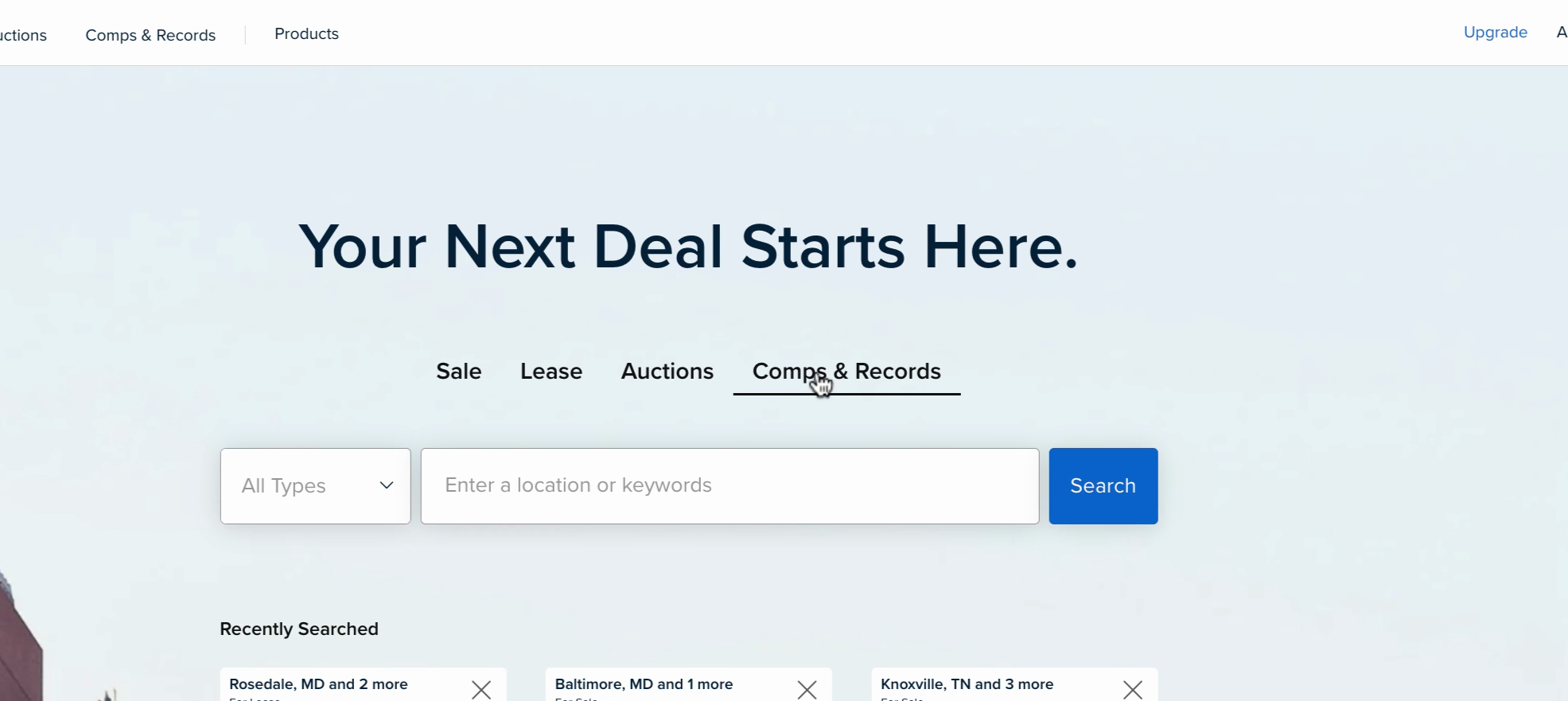
Step 1: From the Crexi home page, go to Comps & Records.
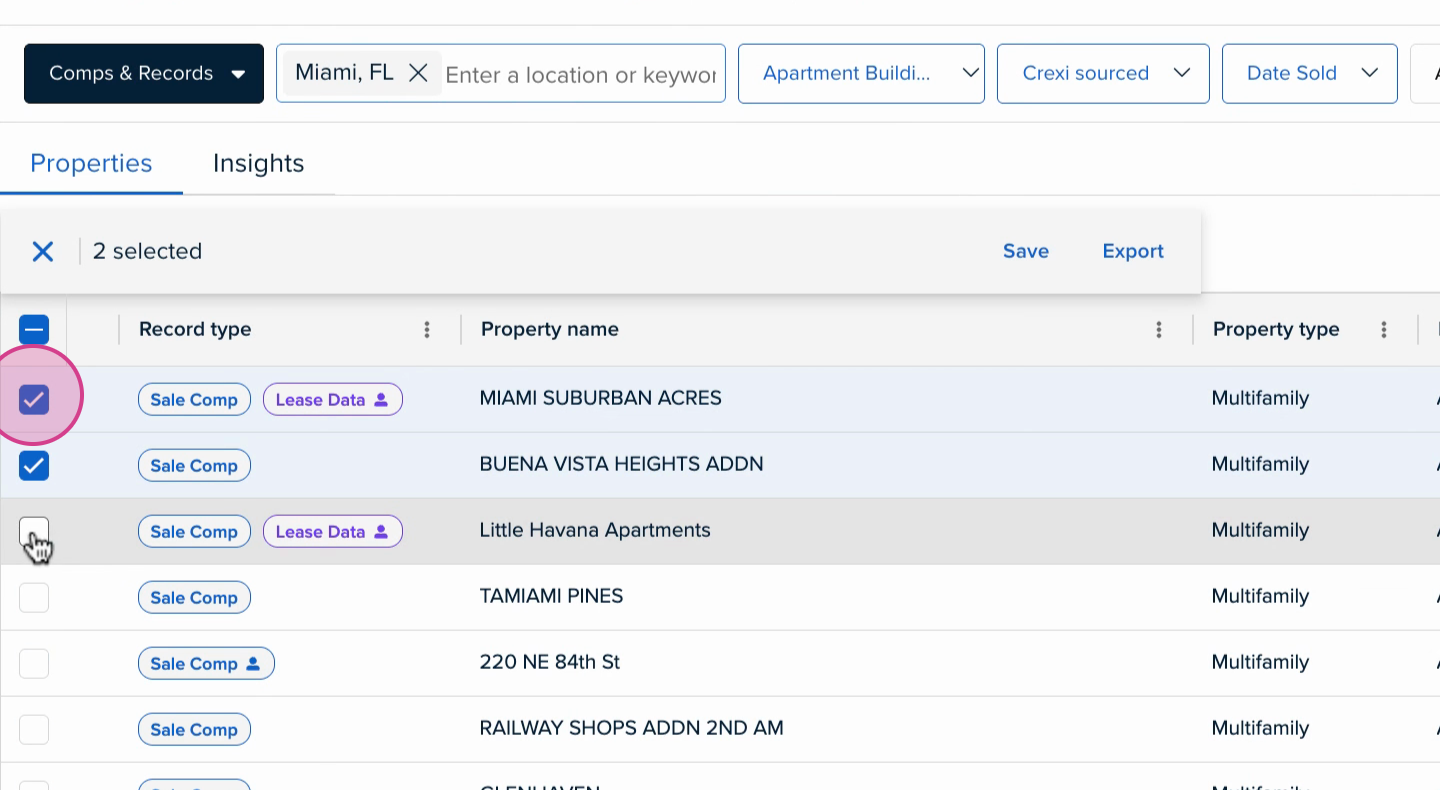
- Step 2: After inputting your filter criteria and running your search, manually select the desired comps/property records you'd like to export.
-
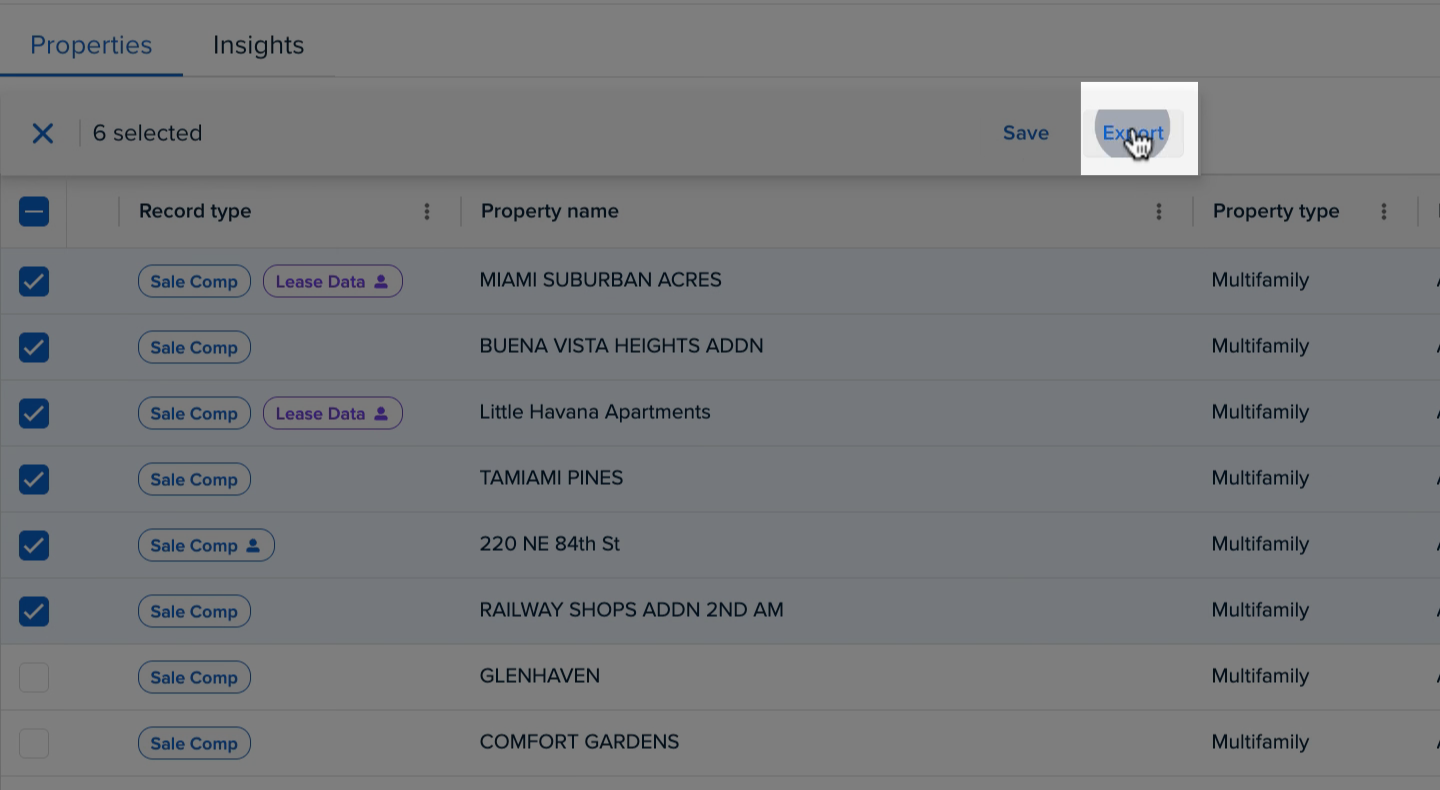
Step 3: With your selections made, click on Export.
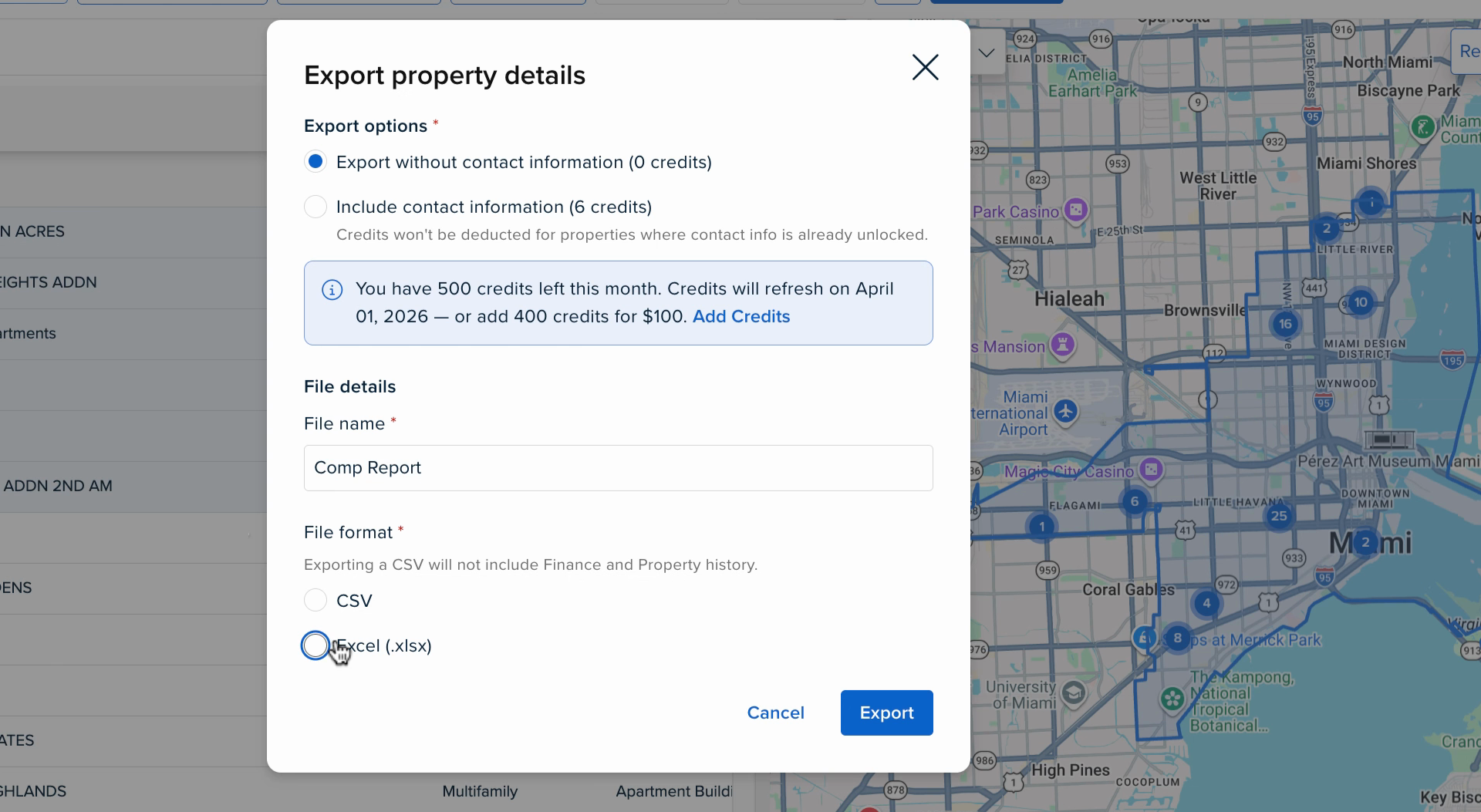
- Step 4: Decide to export with our without contact information (you'll need credits to export contact information), name your file, choose your preferred file format and select Export.
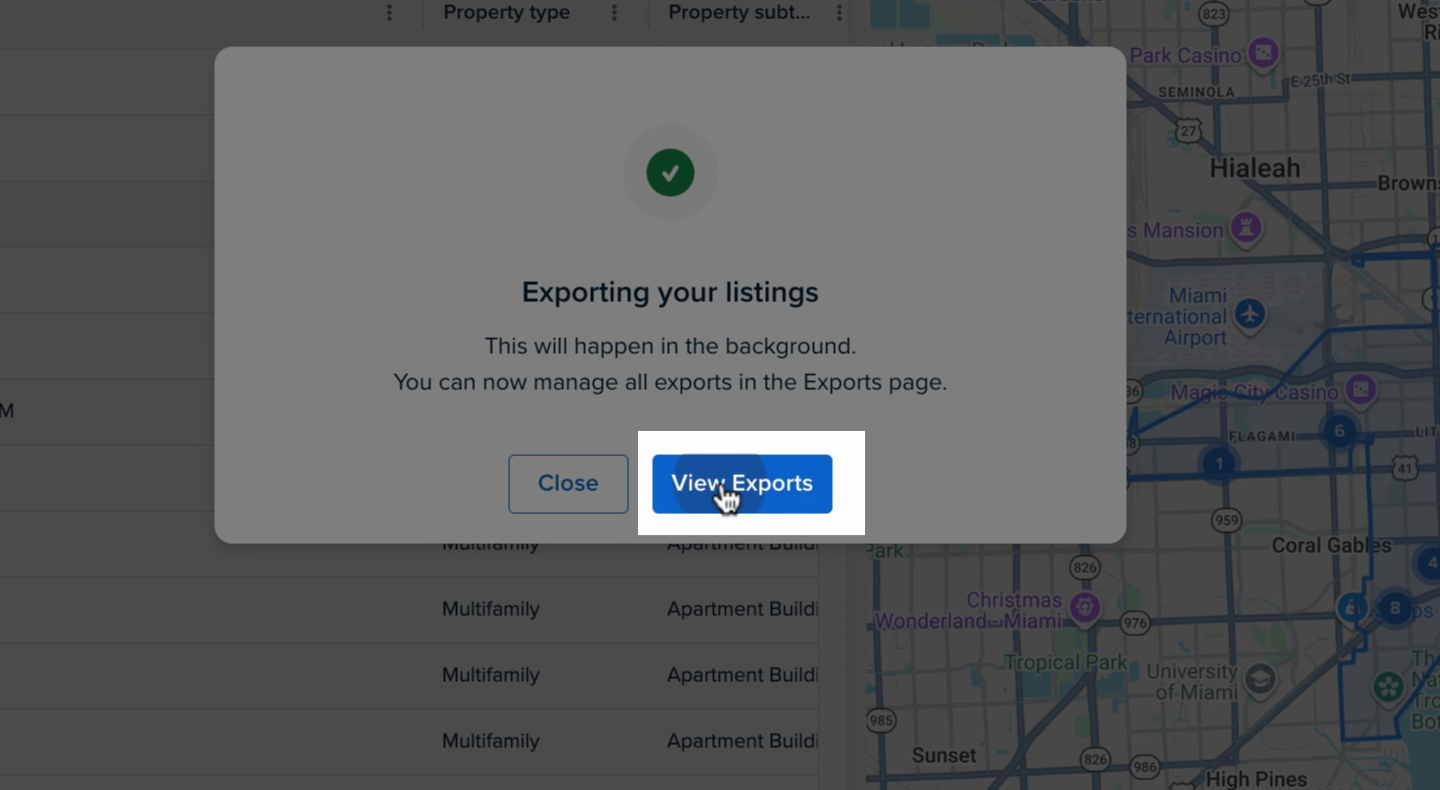
- Step 5: Select View Exports to go to your Exports section.
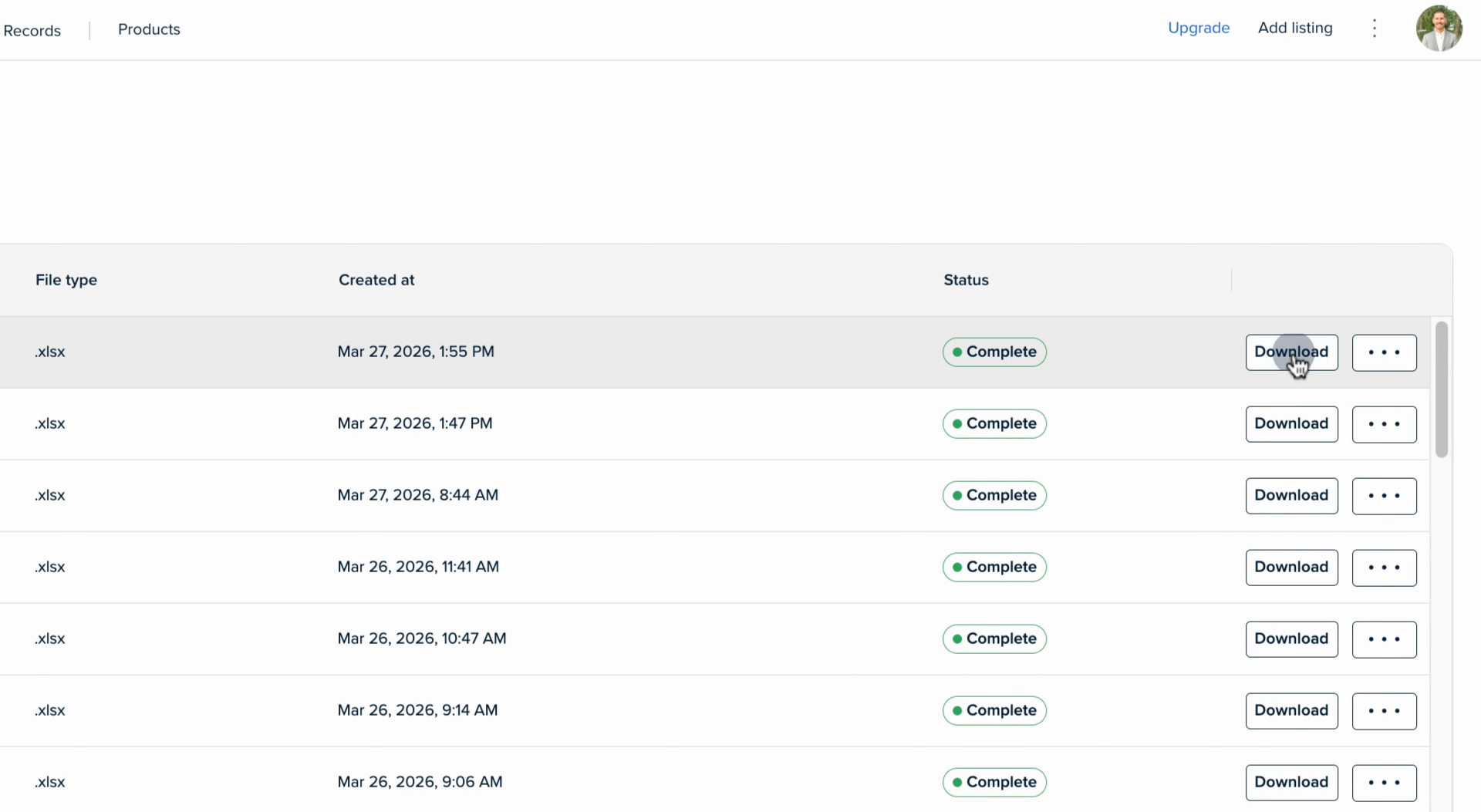
- Step 6: When your export is complete, download it by clicking the download button on the right. Open your Excel file to review your comp/property record data.
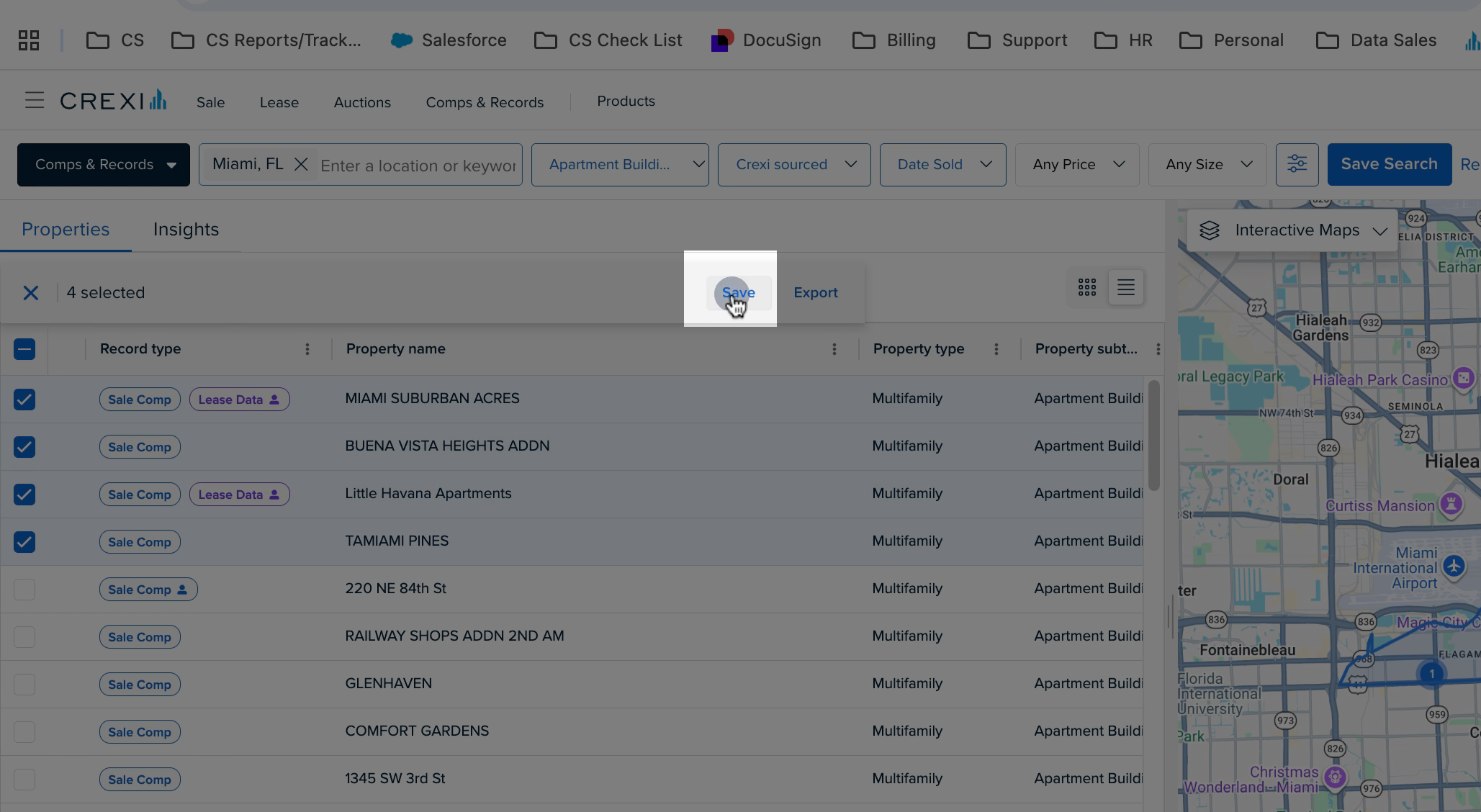
- You can also save selected comps/property records to a Group.
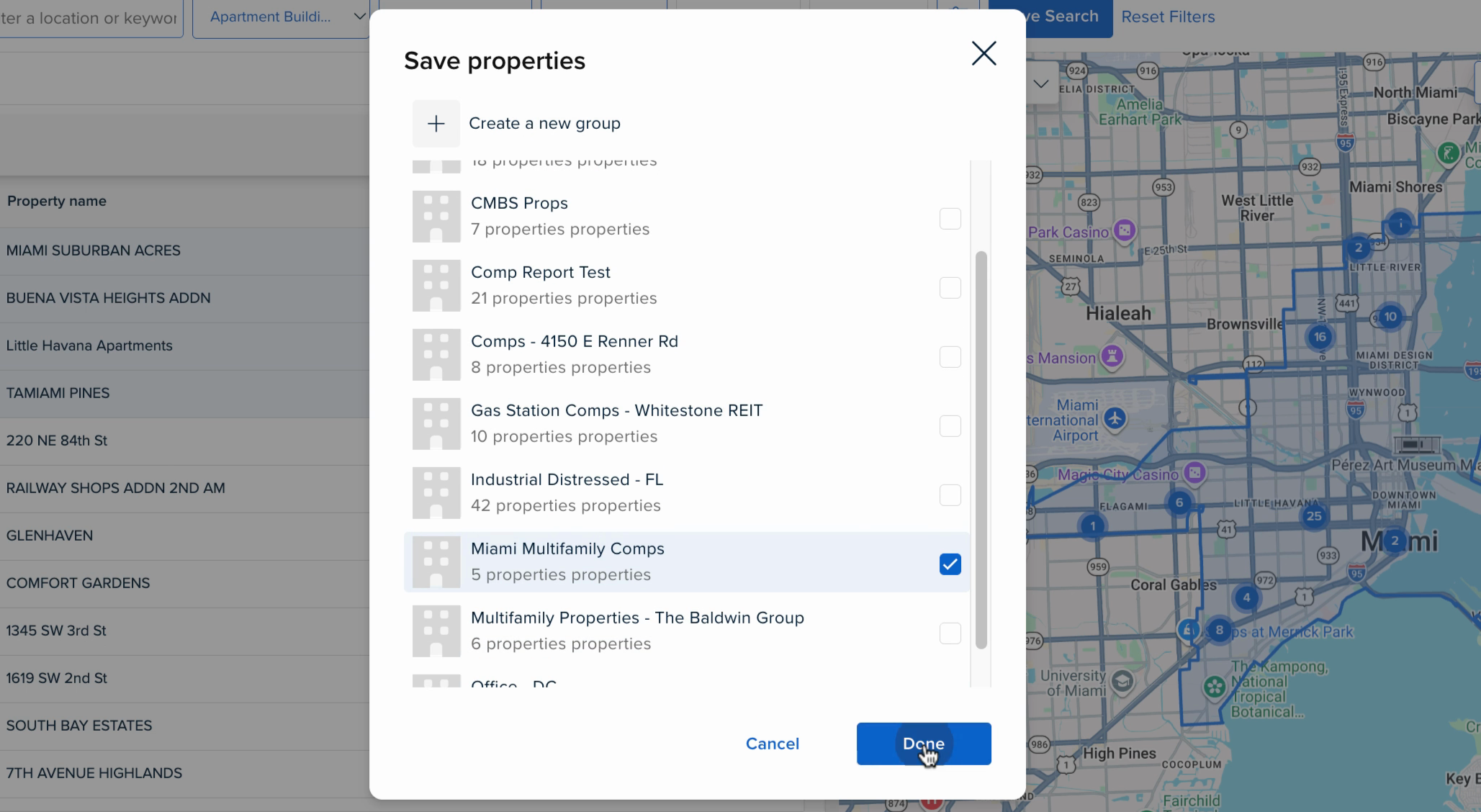
- Add the selected comps/property records to a new or existing group. Hit Done when finished.
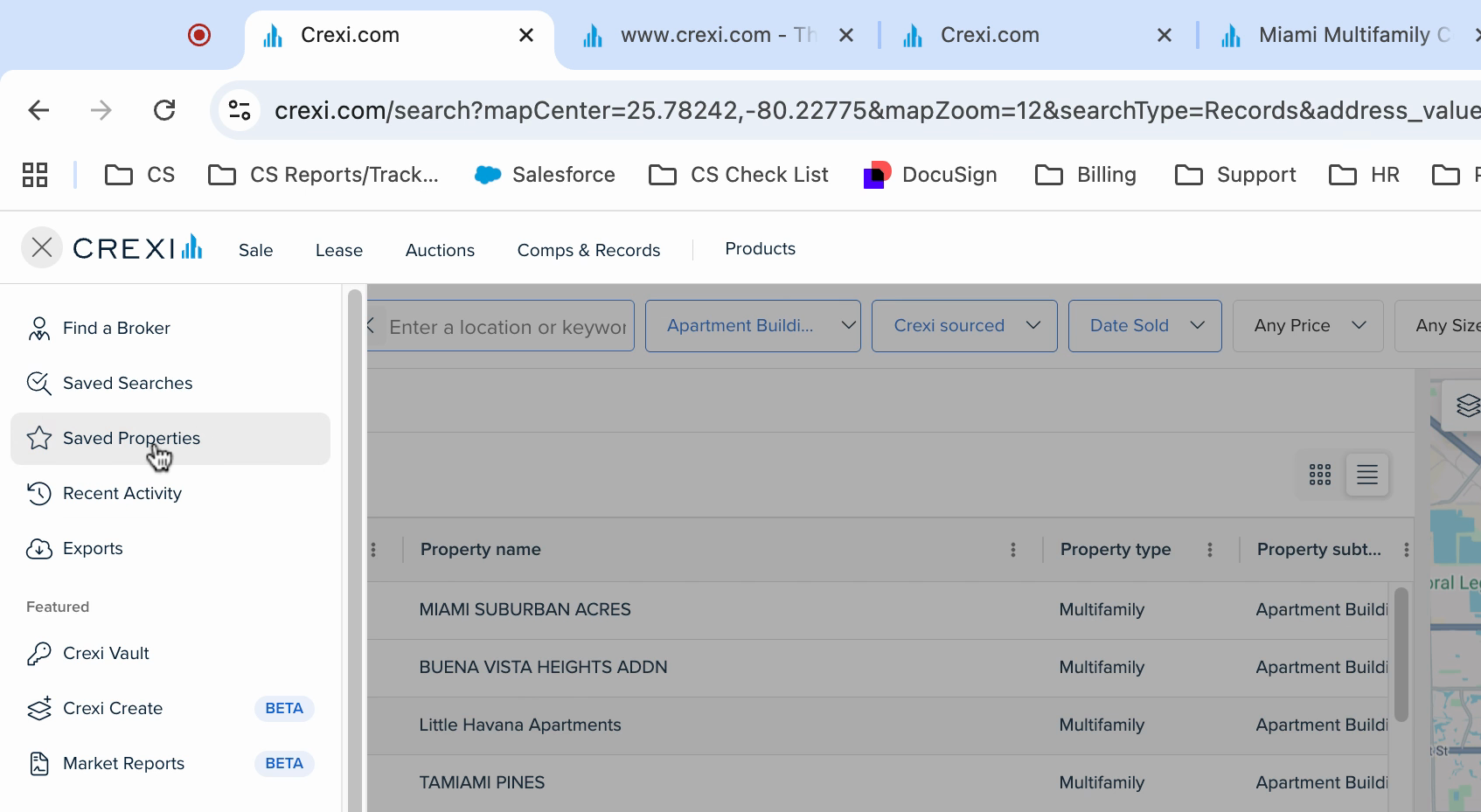
- To find your saved comps/property records group, click the menu button in the top left corner, click Saved Properties, and go into Comps & Records section.
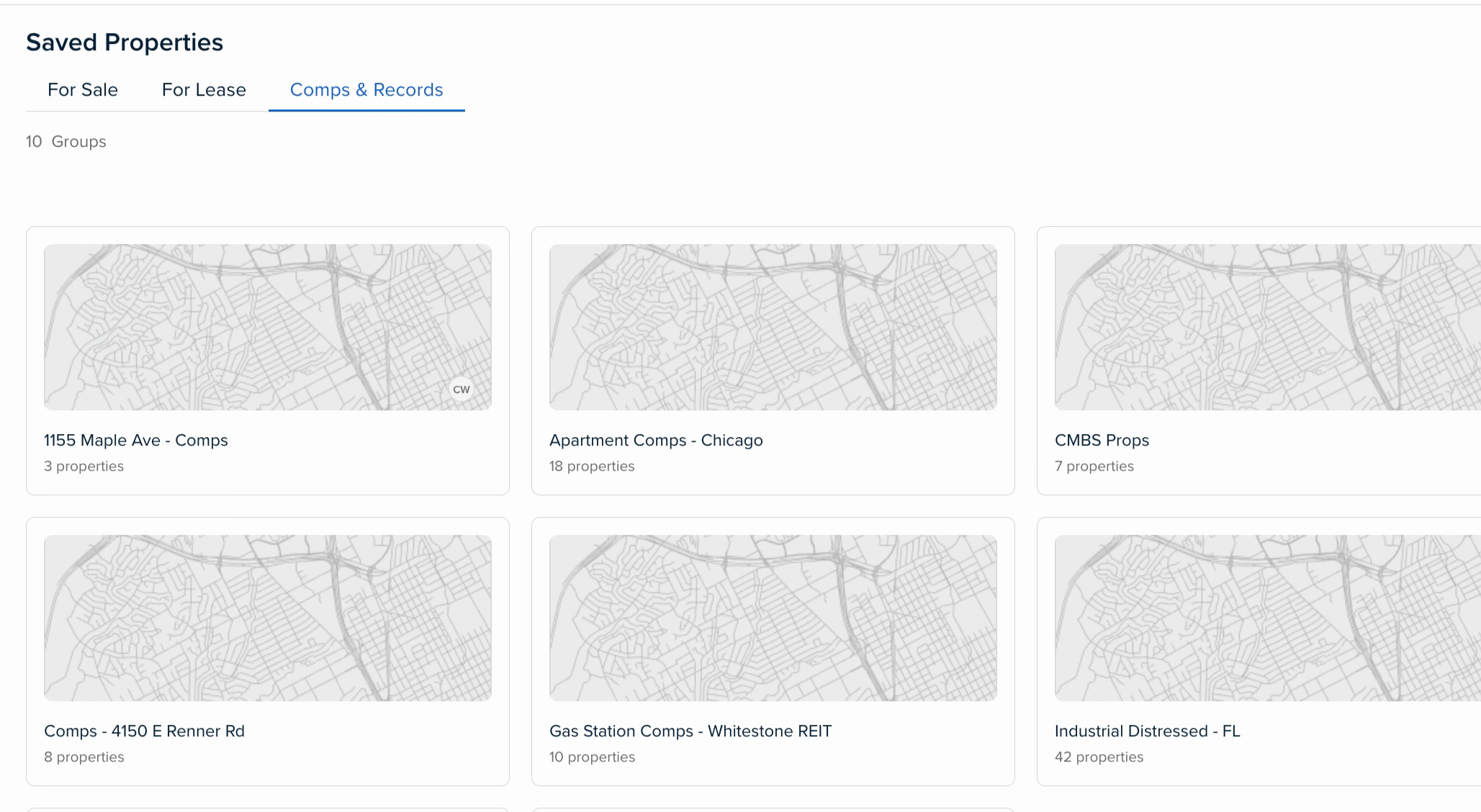
- Click into the specific saved group you want to view.
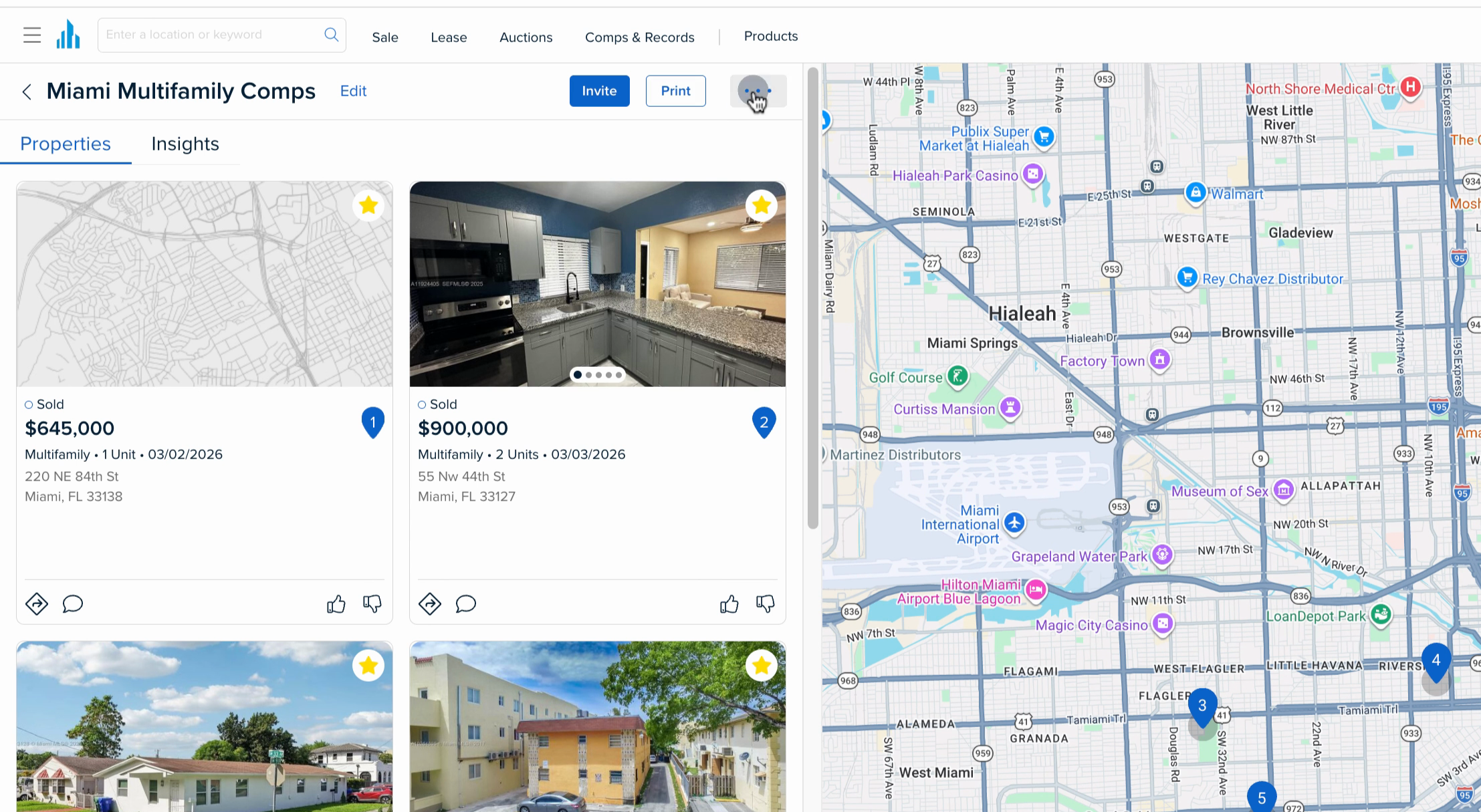
- Print the data by selecting the Print button or select the three-dots and export this specific data set as needed.
Interested in Crexi Intelligence? Click here to schedule a demo today. If you need further assistance, please reach out to support@crexi.com or 888.273.0423.