
How to Use Map Overlays in Crexi
Step 1: Start a property search. Select either Sale or Lease to get going.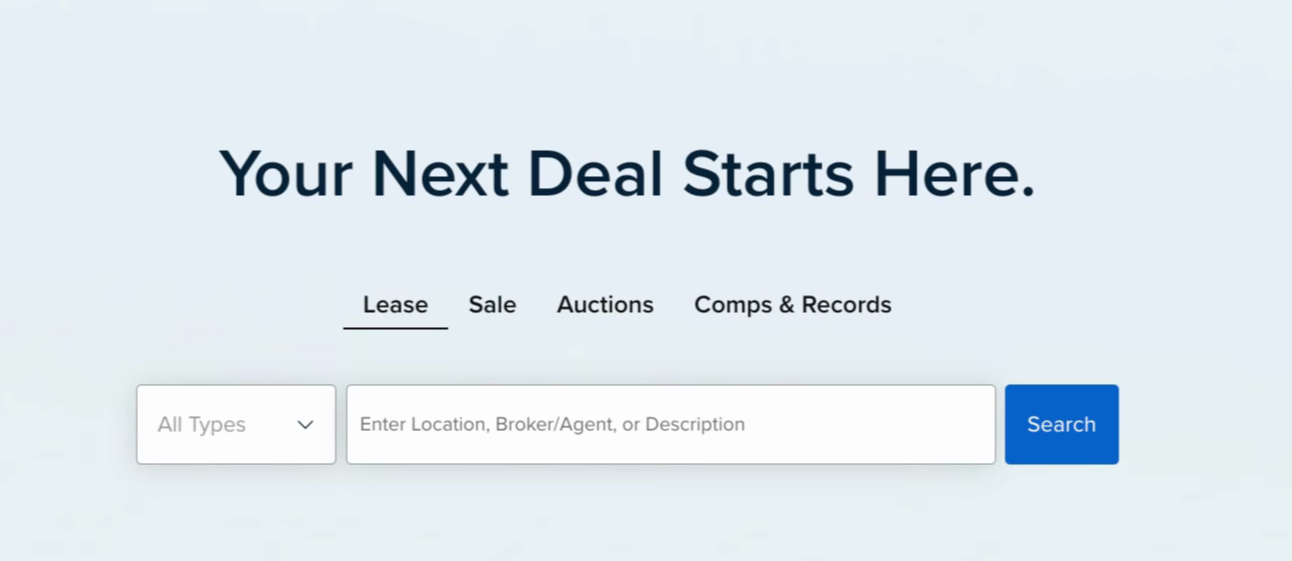
Step 2: Use the search bar to enter a location. Type a city, county, or zip code to focus your search. Zoom in on the map to hone in on your target area. Click Map Overlays in the upper left of the map. This menu shows all available overlays, including demographics, risk zones, traffic, and more.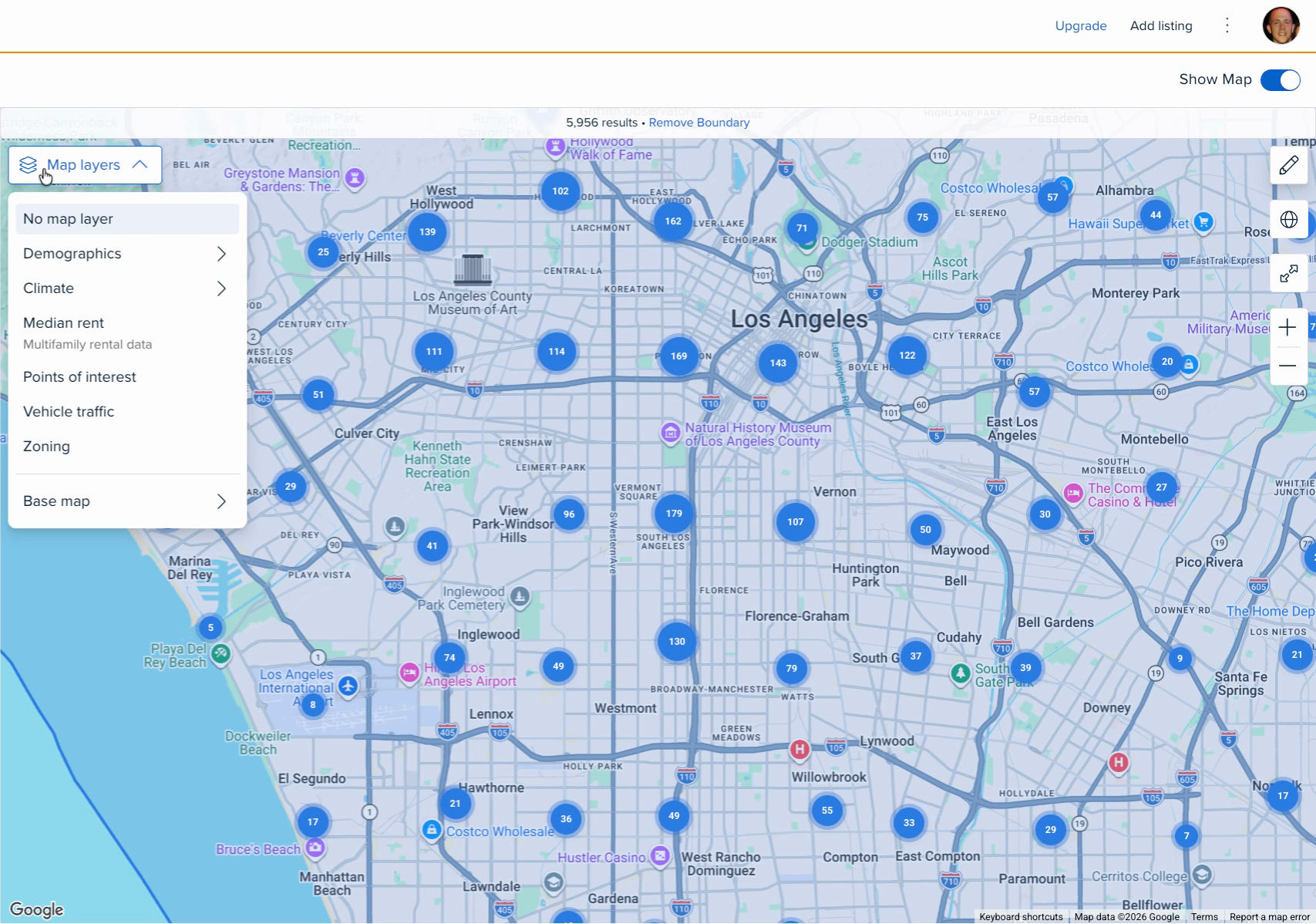
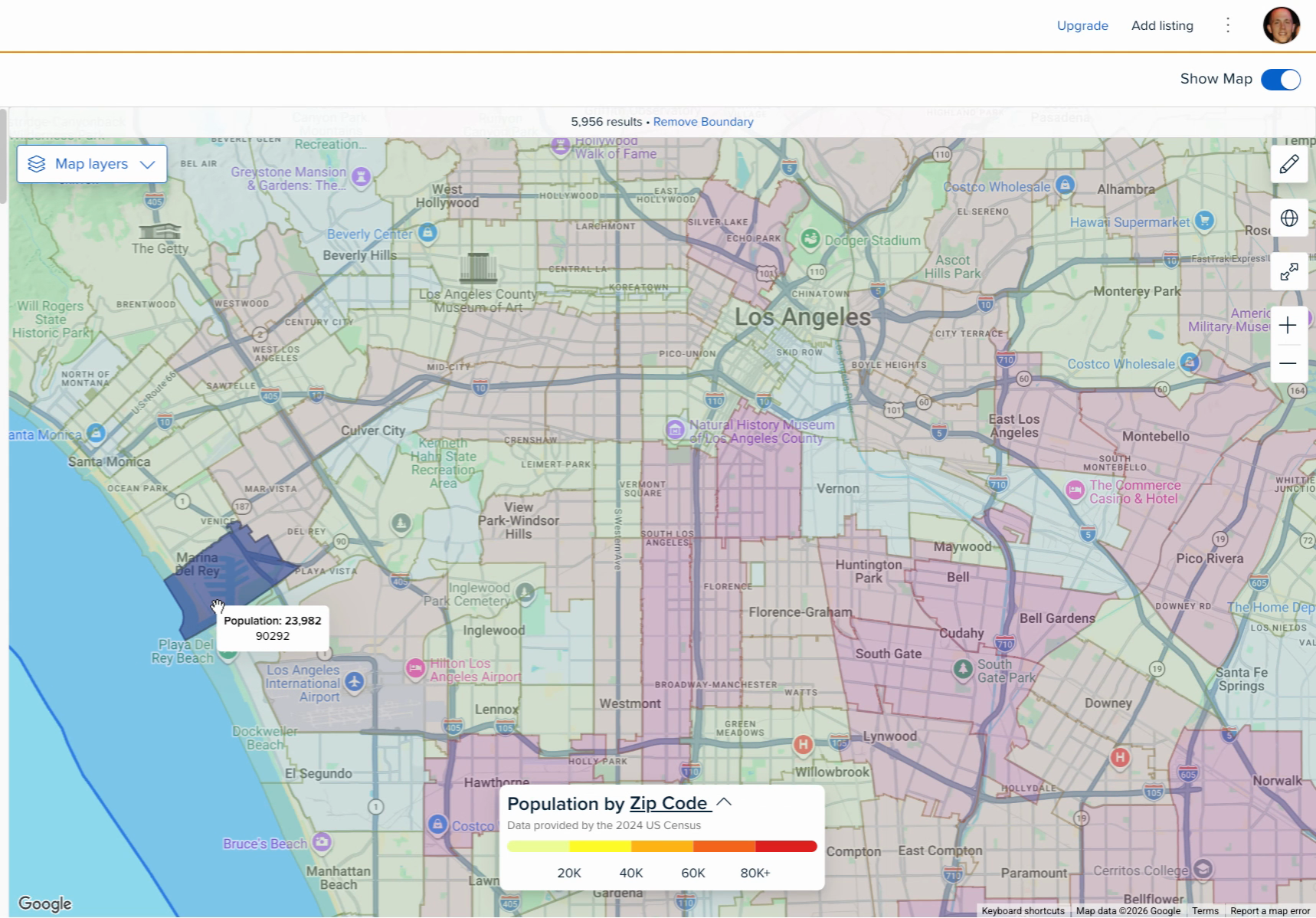
Step 3: Select Demographics to reveal population statistics and median income directly on the map.
Step 4: Explore the Points of Interest overlay. Choose categories like restaurants, then click icons on the map to learn more about specific locations.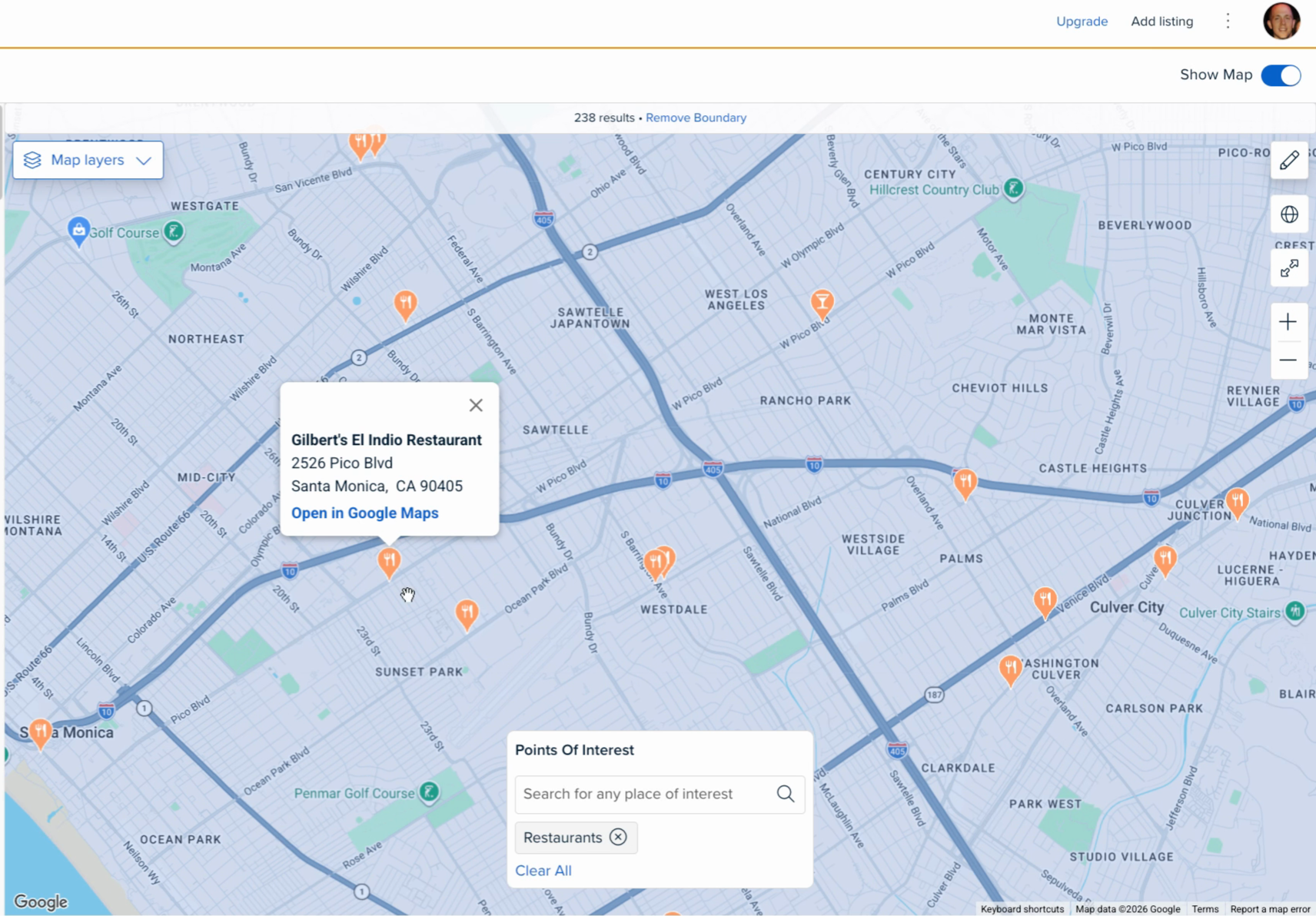
Step 5: For traffic insights, select the Vehicle Traffic overlay. Zoom in and hover over roads to view average vehicles per day, plus arrows indicating traffic direction. Use the Zoning overlay to view zoning codes for each parcel nationwide—handy for development and planning.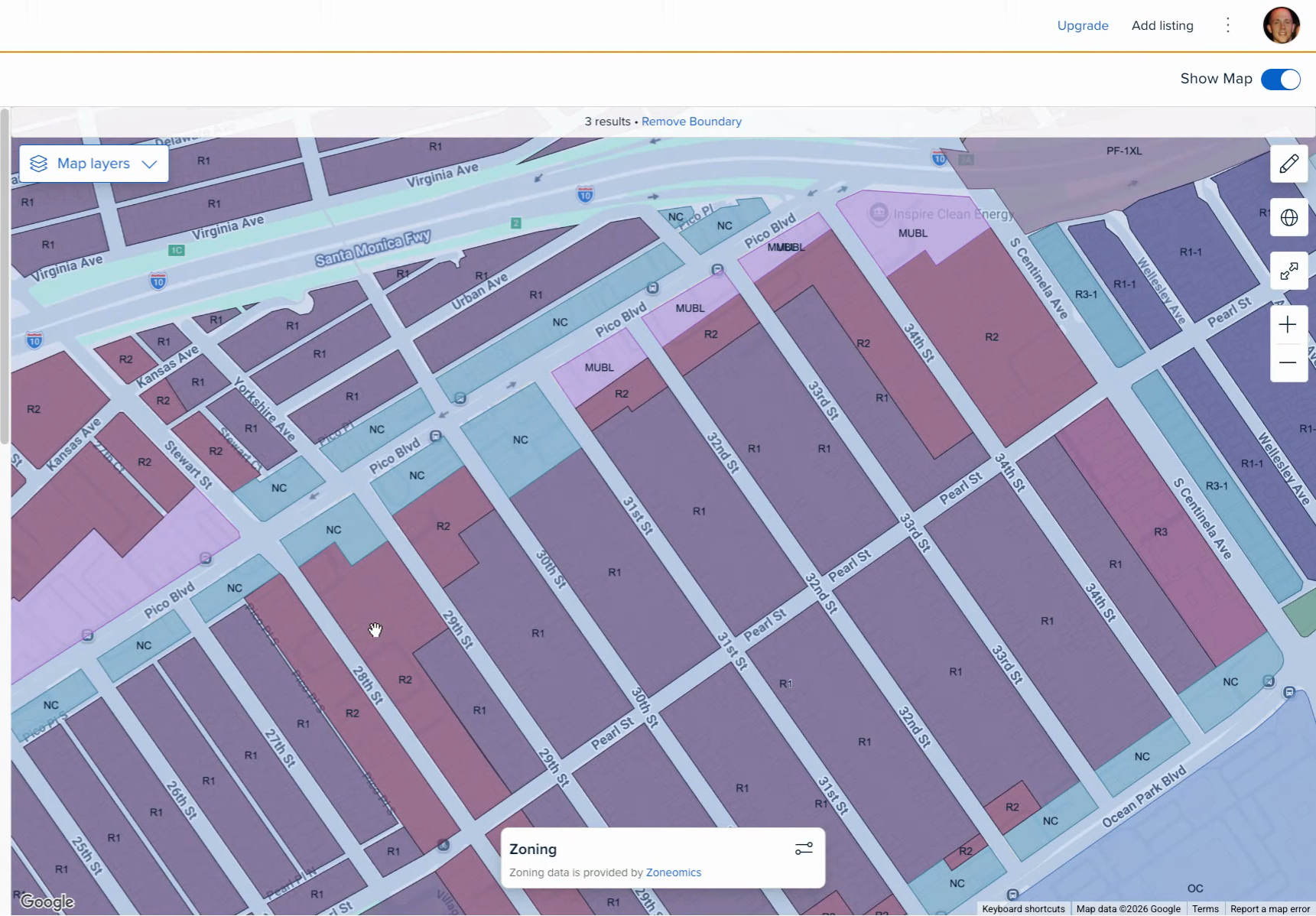
Map overlays transform your Crexi search map into a data-rich resource. Quickly compare areas, uncover hidden trends, and make smarter decisions—all from a single interface. If you are interested in upgrading your account or need more help, contact support@crexi.com or call 888-273-0423.