
Crexi Marketing Campaign Portal Walkthrough
Crexi Marketing Portal allows Pro members on your team to send more effective emails, increase deal activity, and garner more connections with prospective buyers. Using this feature allows you to not only track the success of the campaign, but capture invaluable activity in your Property Dashboard as well.
Choose up to 12 properties to include in an email campaign. Crexi automatically populates the email with all the information from the listing page. You can preview the email in desktop form or view how it appears on a smart phone. Feel free to also send yourself a test email. Crexi gives you multiple template options and allows you to customize your email’s color schemes. Choose how many brokers you want to include on the campaign. Within the Email Settings section you have the ability to customize various sections such as the title, sender name, reply to email address, and add a custom message. Next, upload your contacts email addresses in the recipients box or upload a CSV file. You can access a previous saved contact list or create a new one for future use.
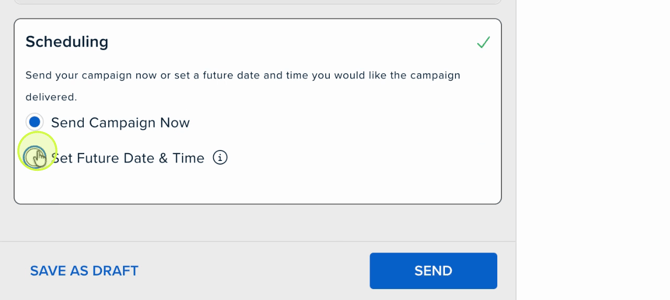
Lastly, schedule your email campaign to go out immediately or schedule it to be sent at a later date. Use the Email Campaigns page to track your email stats. Once your email is sent you will see the results update in real time.
How to Use Crexi’s Marketing Campaign Tool
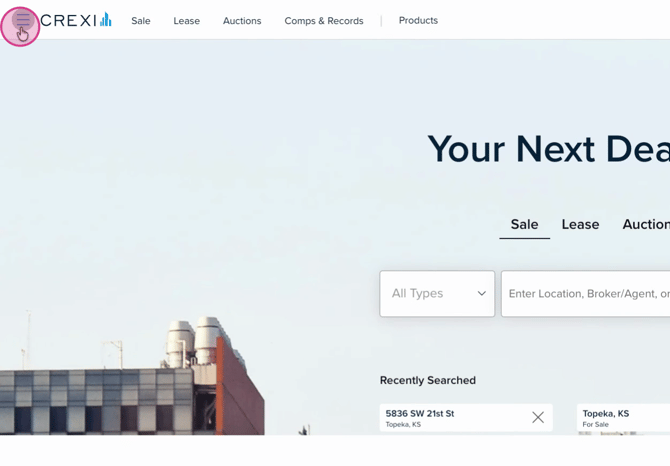
- Step 1: Click the menu button at the top left.
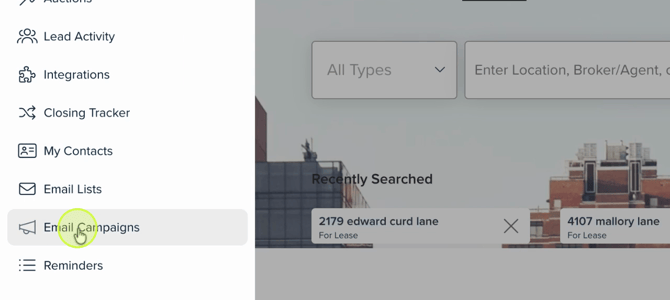
- Step 2: Select Email Campaigns.
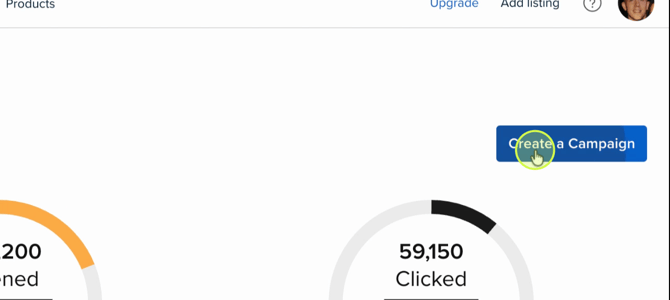
- Step 3: Click Create a Campaign to start a new campaign.
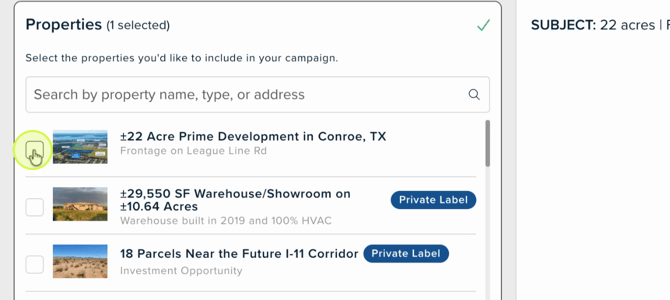
- Step 4: Choose up to 12 properties for your campaign.
- Step 5: Pick your preferred template.
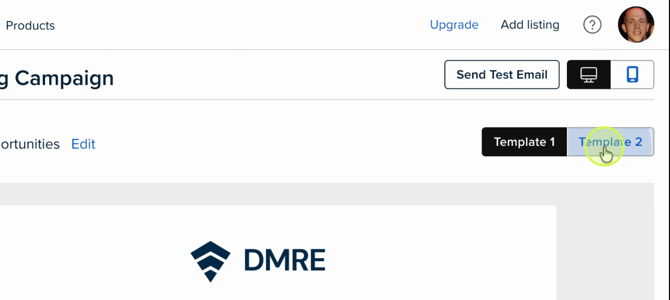
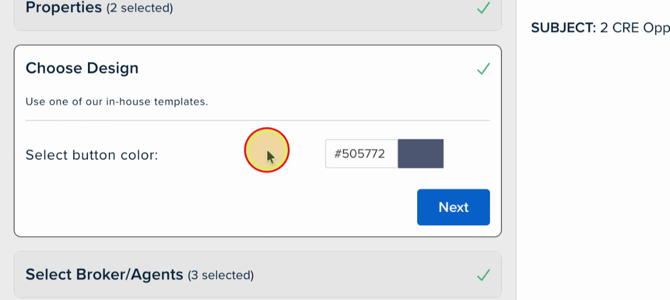
- Step 6: Customize the campaign colors to match your brand.
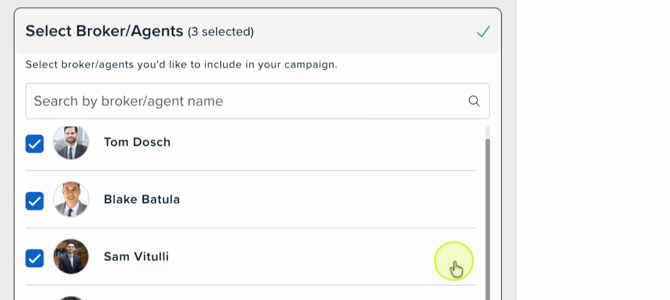
- Step 7: Choose which brokers/agents you want visible on the email campaign.
- Step 8: Add your recipients, enter manually (up to 50,000) or upload a CSV file. You can also select previously used email lists.
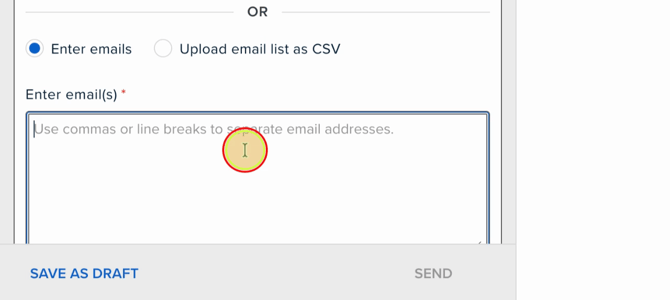
- Step 9: Save your campaign in DRAFT mode and finish later or send the campaign out now or set a future date & time.
If you need any further assistance or are interested in Crexi Pro, please reach out to support@crexi.com or 888.273.0423.