
Exploring the Property Overview Dashboard
Step 1: Click the menu button in the top left corner.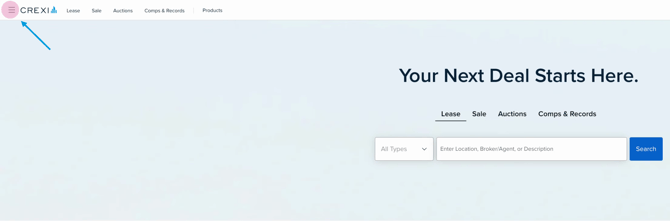
Step 2: Go to My Listings.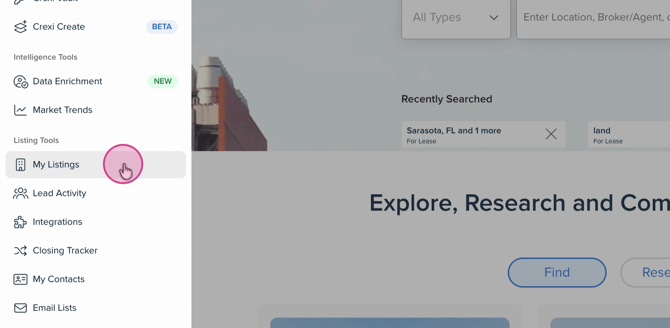
Step 3: Select the listing you want to review.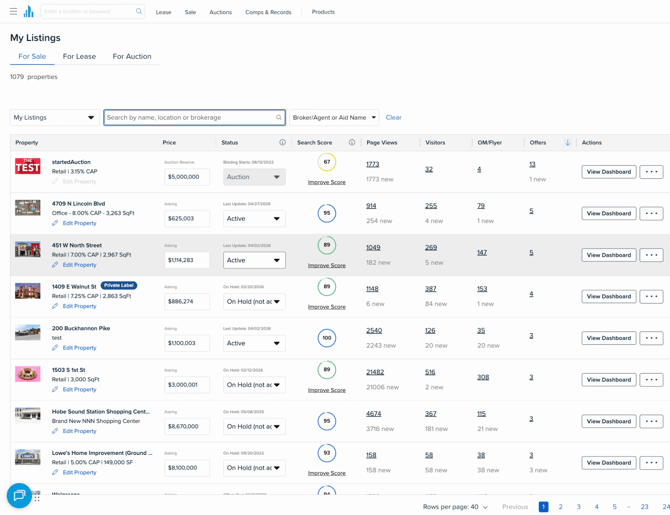
Step 4: Once inside the Property Overview Dashboard, update the listing status, edit property details, view lead activity, and view marketing analytics.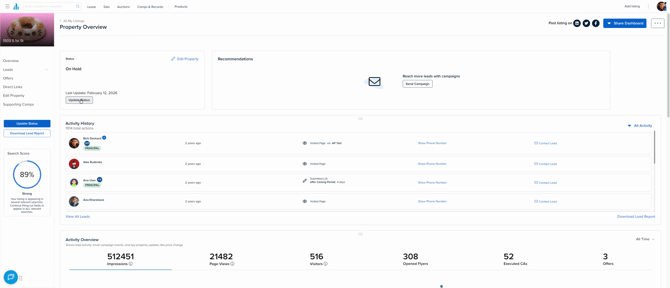
Step 5: In the Activity History section, review all actions taken by leads on this listing. Pro members see full contact info, along with action times and types.
Step 6: To learn more about a lead, click their name to open the lead drawer on the right.
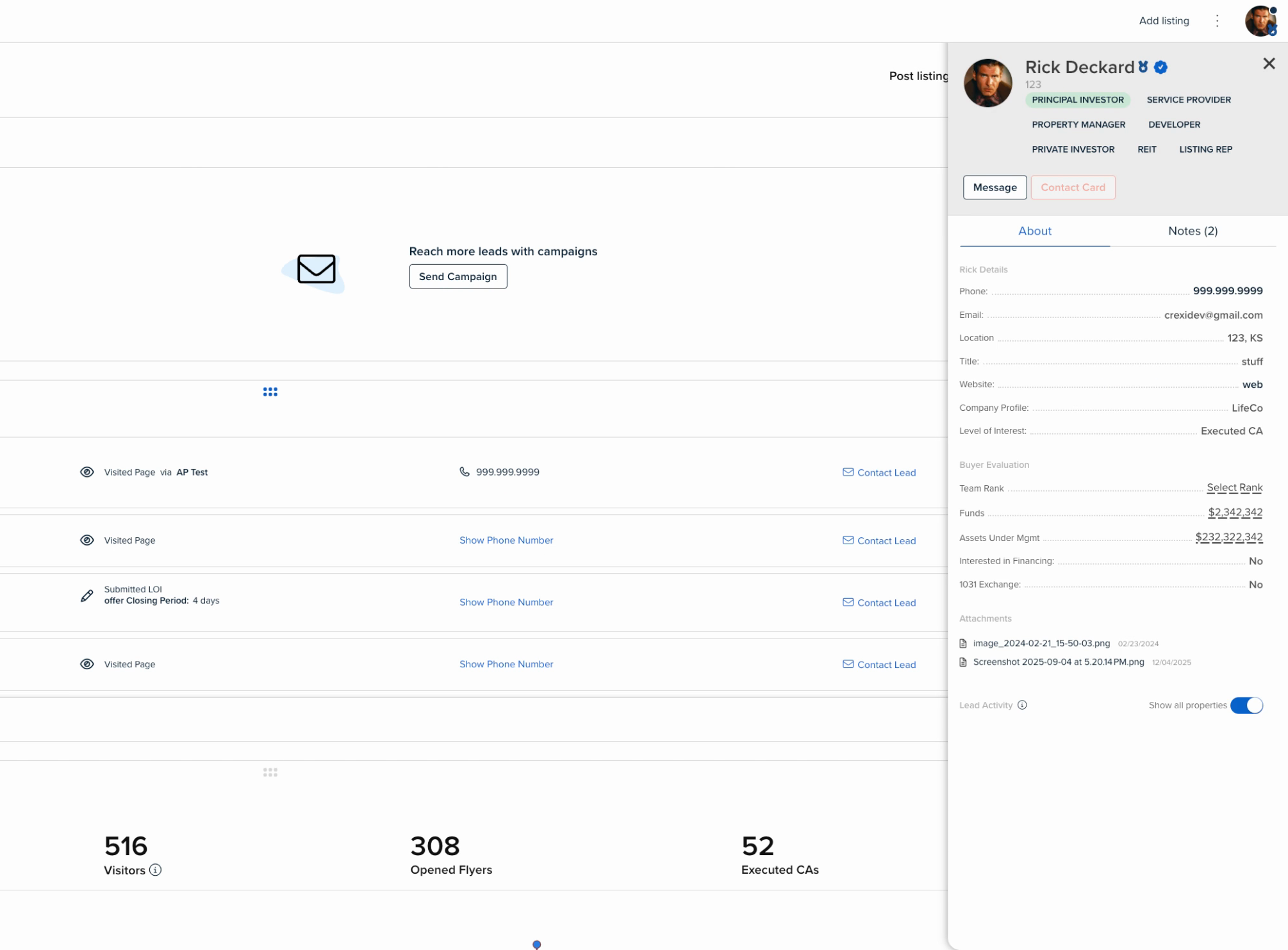
Step 7: Leave notes about individual leads right in the Notes tab for easy reference.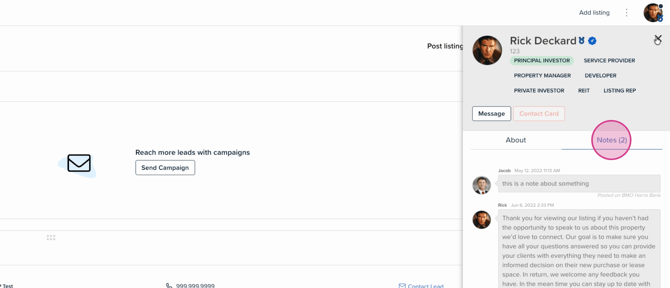
Step 8: Below your activity history, check the Activity Overview for that listing. This includes impressions (the number of times your listing was shown), page views (unique visits from any user), visitors (logged-in users), and document opens (like flyers or offering memorandums).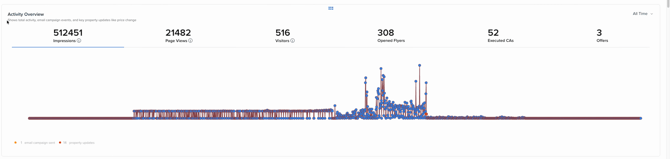
Step 9: For Pro members, listings get automatically pushed out in Marketing Events to Crexi's database. You can also send your own marketing campaigns, all tracked here with metrics like campaign emails sent, opens, and clicks.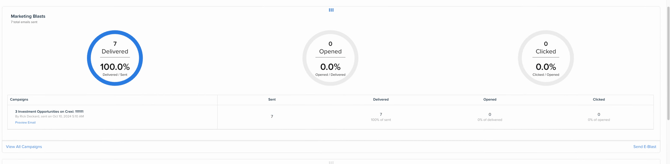
Step 10: To boost your exposure, share the listing on social media. Click the icons in the top right, log in, and post directly to LinkedIn, Twitter/X, or Facebook.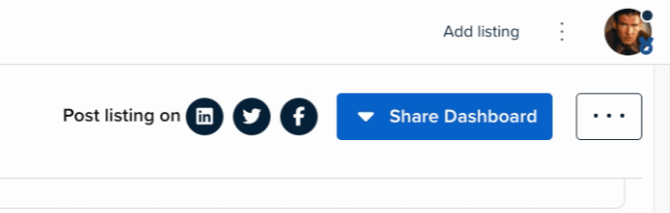
The Property Overview Dashboard centralizes every key detail and activity for your listings in one spot. Check in regularly to monitor performance, engage leads, and drive results for your commercial real estate business.
If you are interested in upgrading your account or need any further assistance, please reach out to us at support@crexi.com or 888.273.0423