
How to Search Tenant & Brand Data on Crexi (Pro & Intelligence Feature)
Step 1: From the Crexi homepage, search within the Comps & Records experience.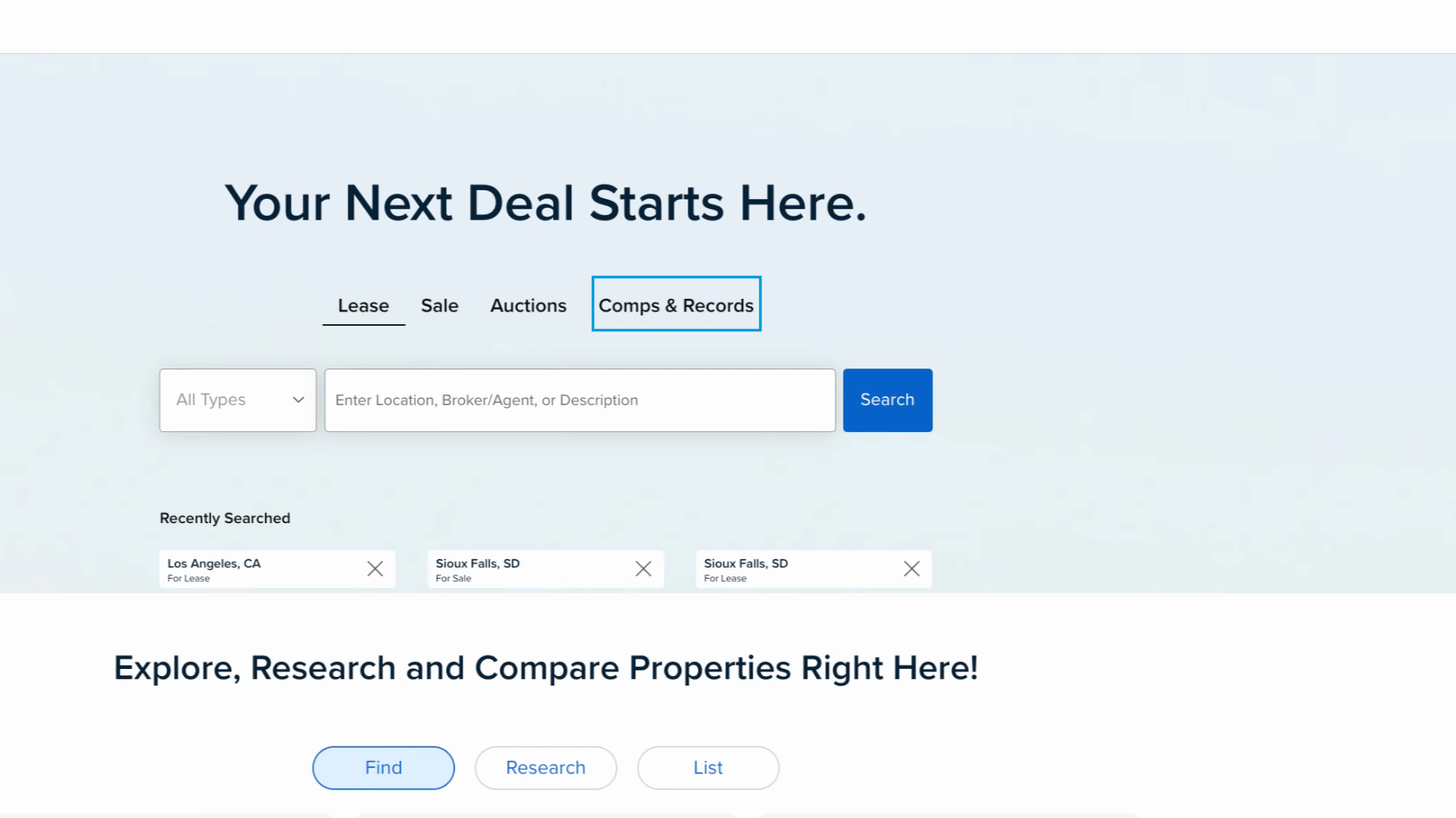
Step 2: Click on the Filters and select the Tenant Data filter to access advanced tenant research options.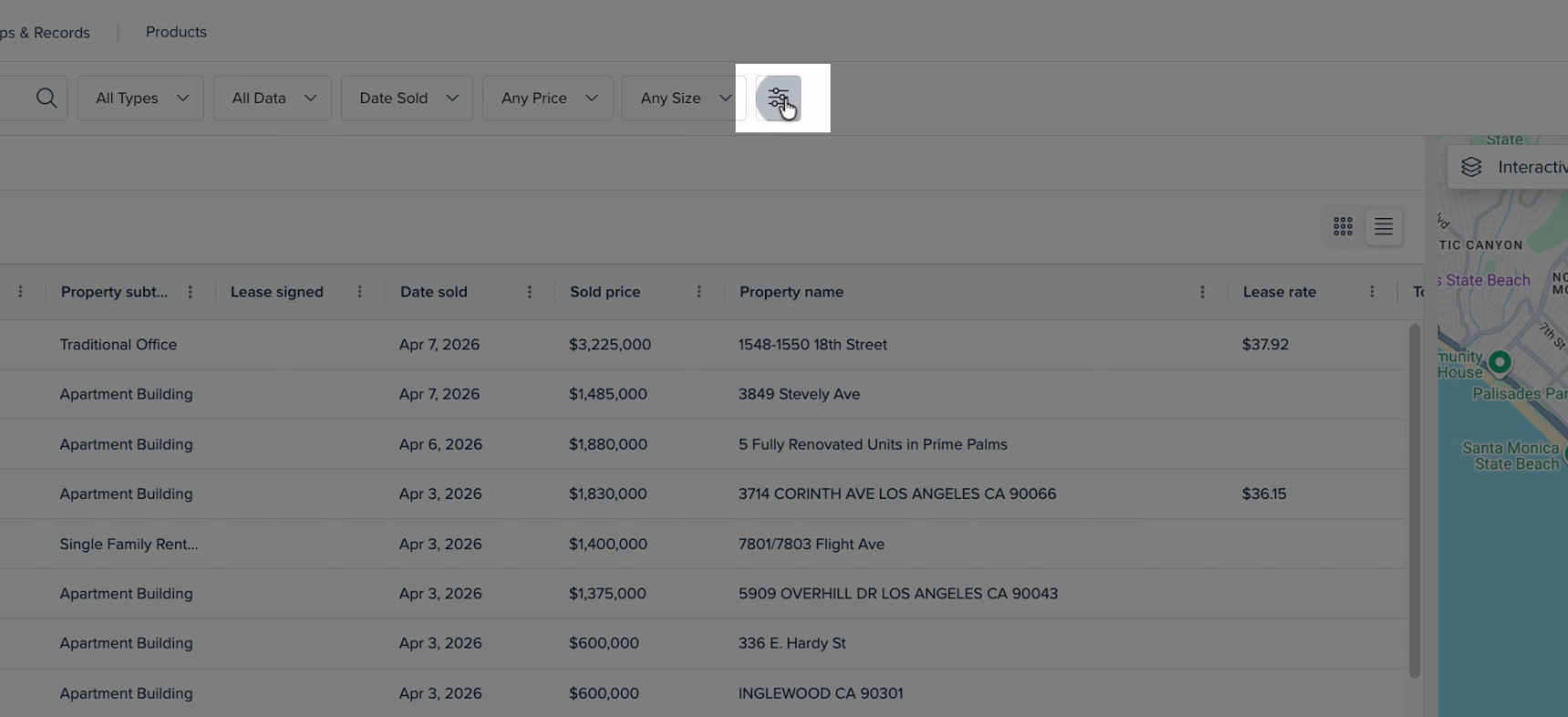
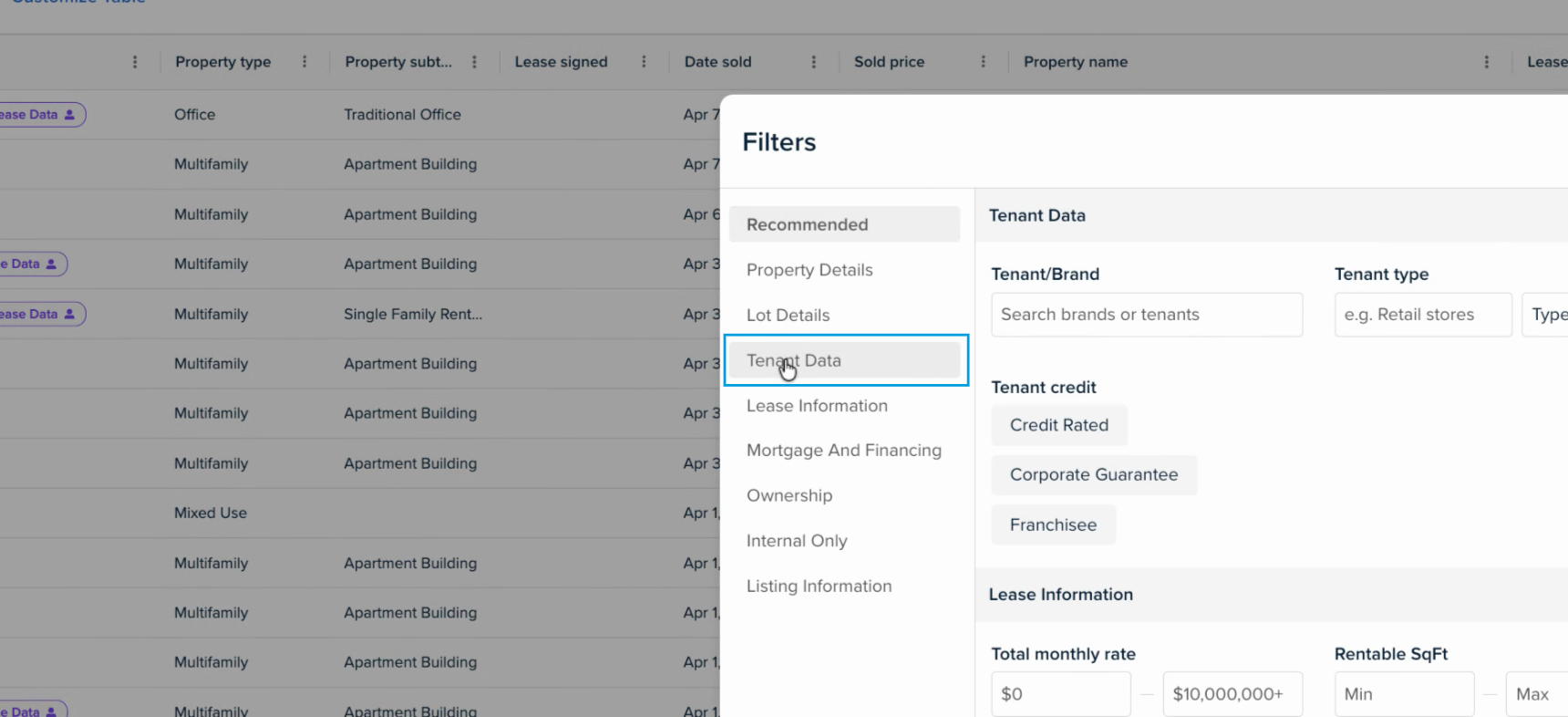
Step 3: Use the search box to explore over 4,000 different brands. Type a brand name (ex. “McDonald's”) to see their locations in your selected area.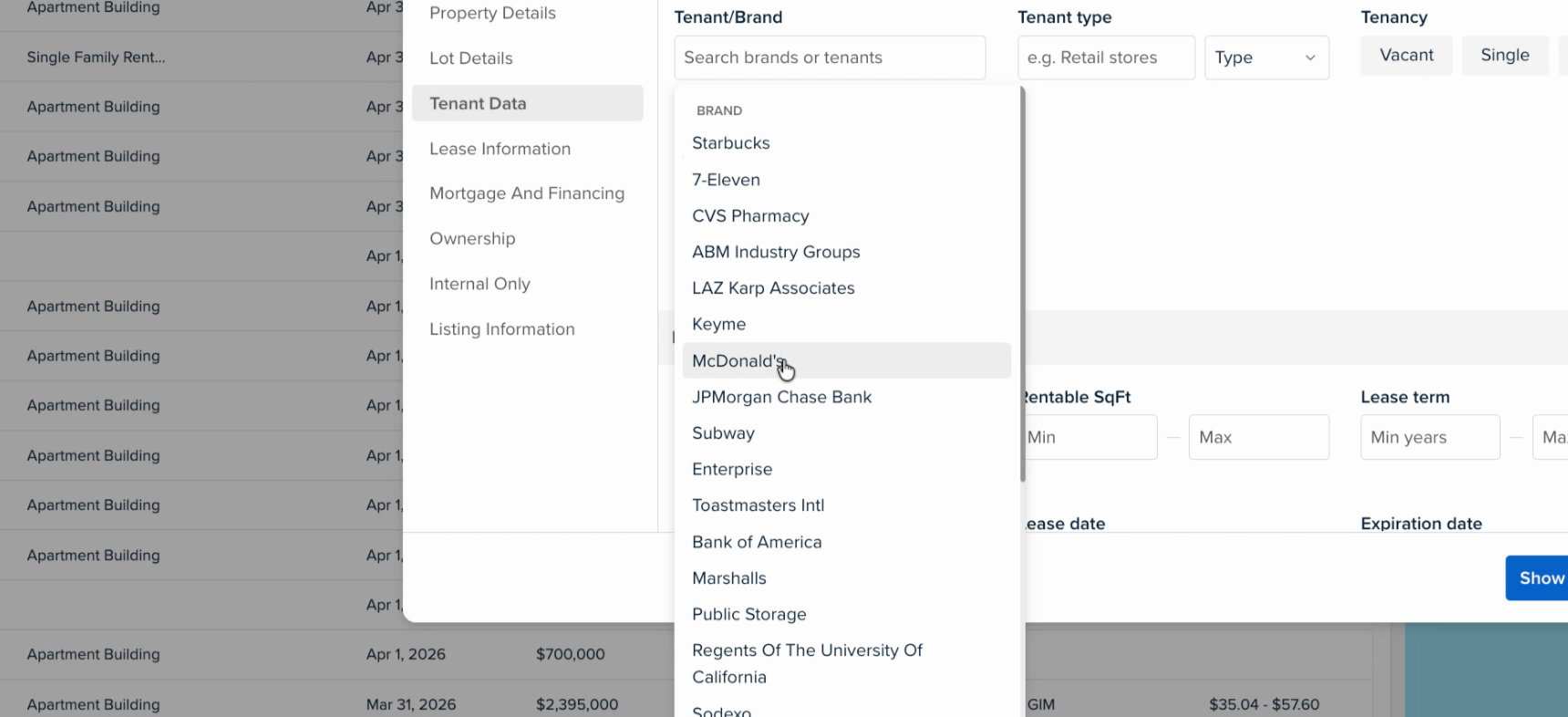
Step 4: Select a specific tenant/brand property record to open up more details. Select the Lease Data tab.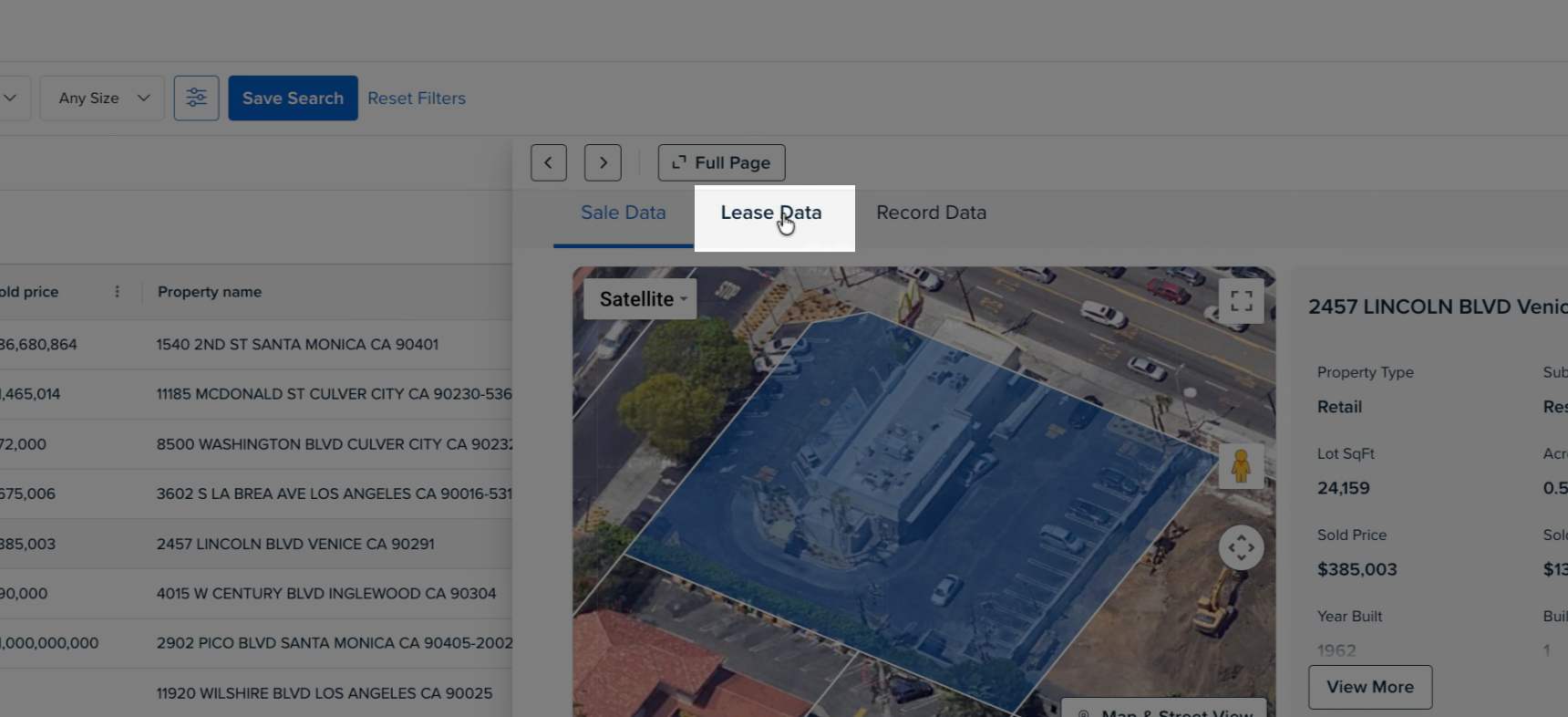
Step 5: View the Tenants section to see which tenants occupy the specific property. 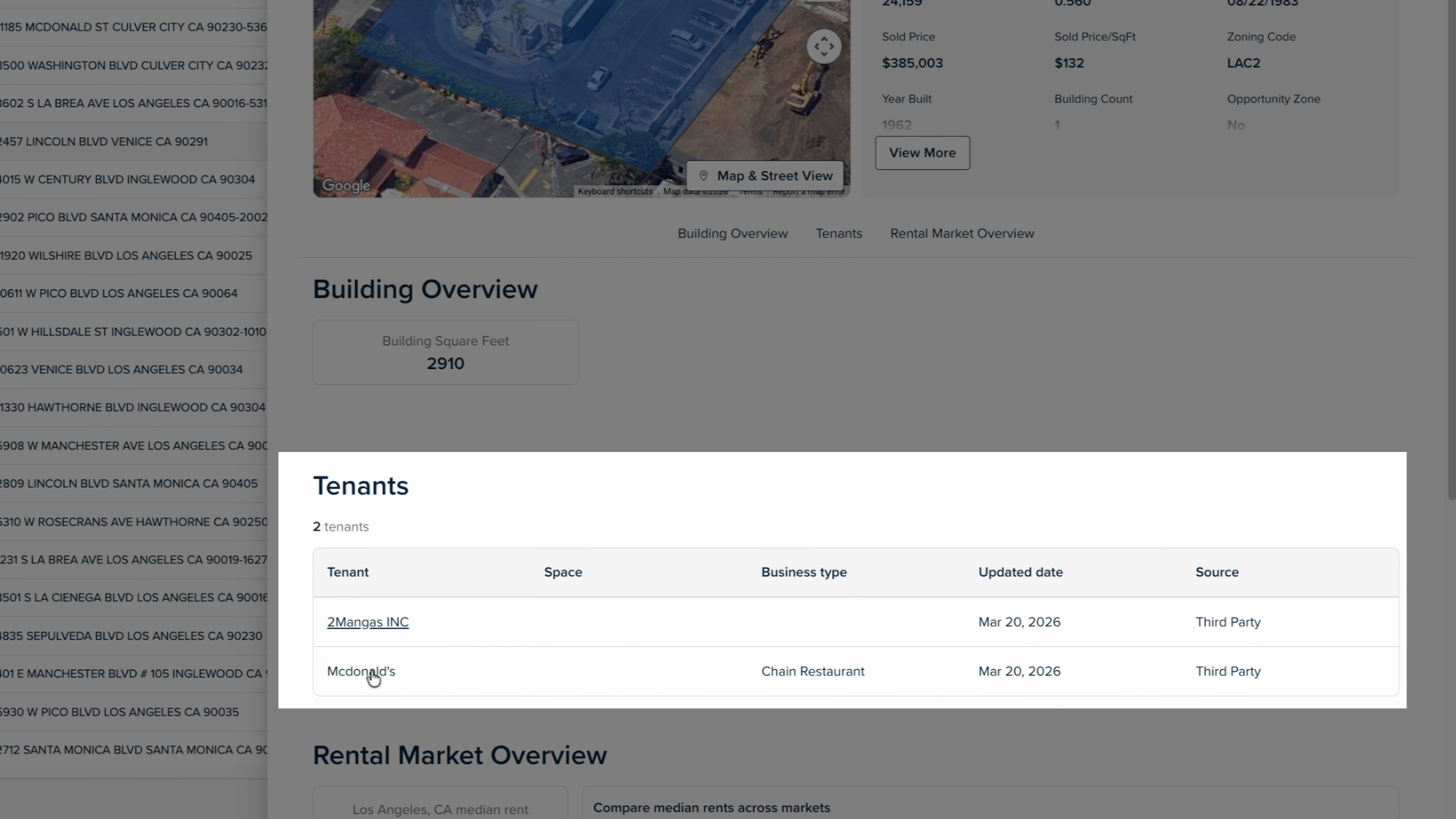
Step 6: Select a specific tenant to research nationwide locations, select Open in Search to view nationwide records for the specific tenant. 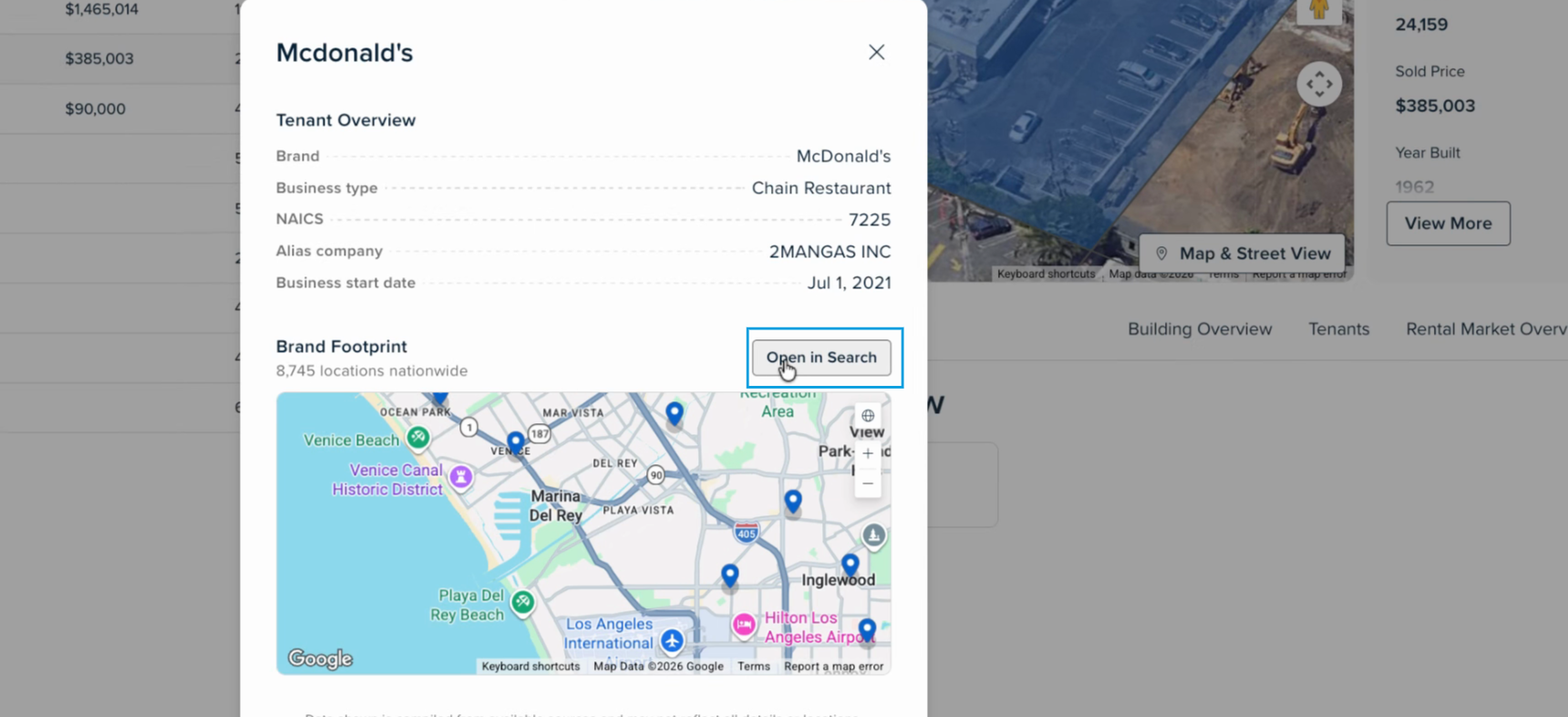
Step 7: Use our advanced Tenant Data filters to also search by tenant types and NAIC codes. 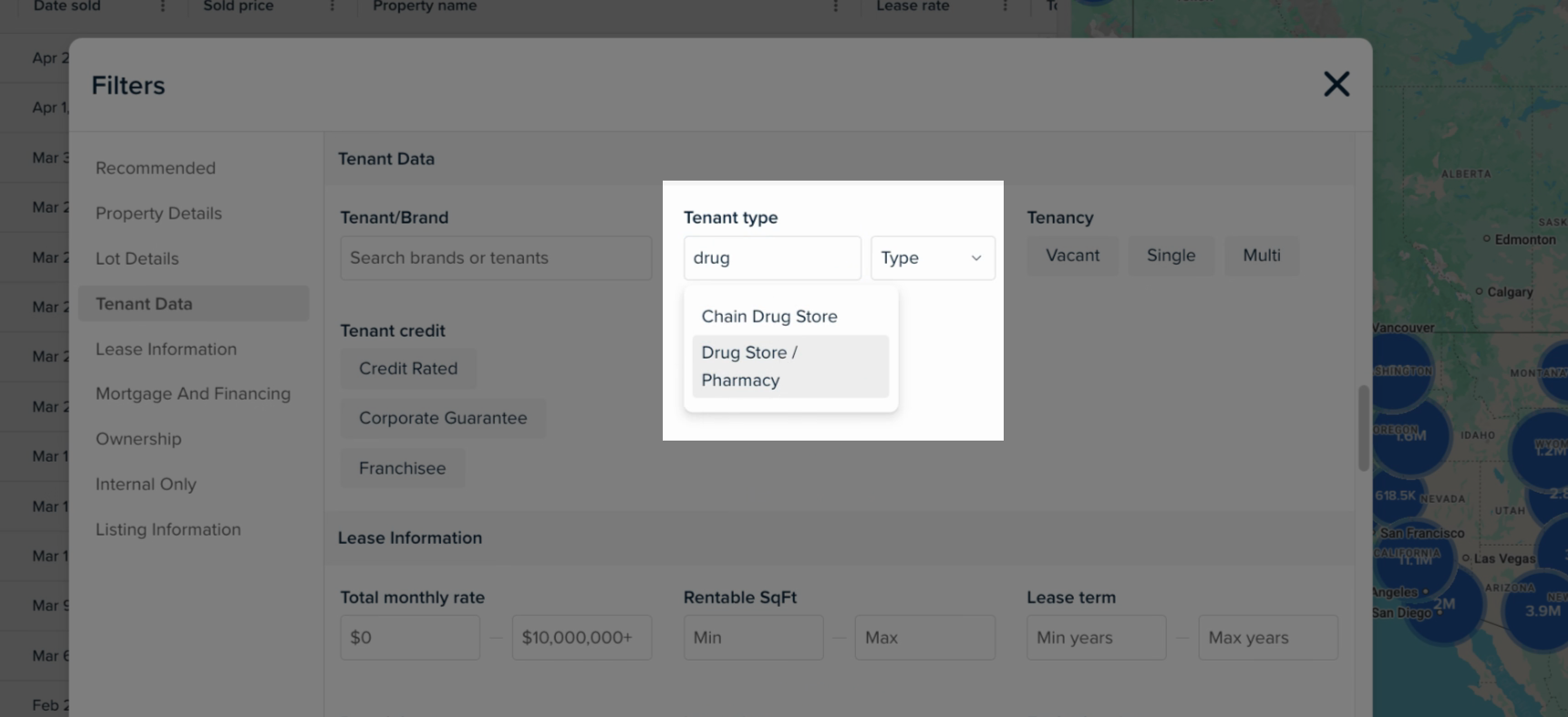
Step 8: Export any of your brand/tenant results by selecting the records and selecting Export.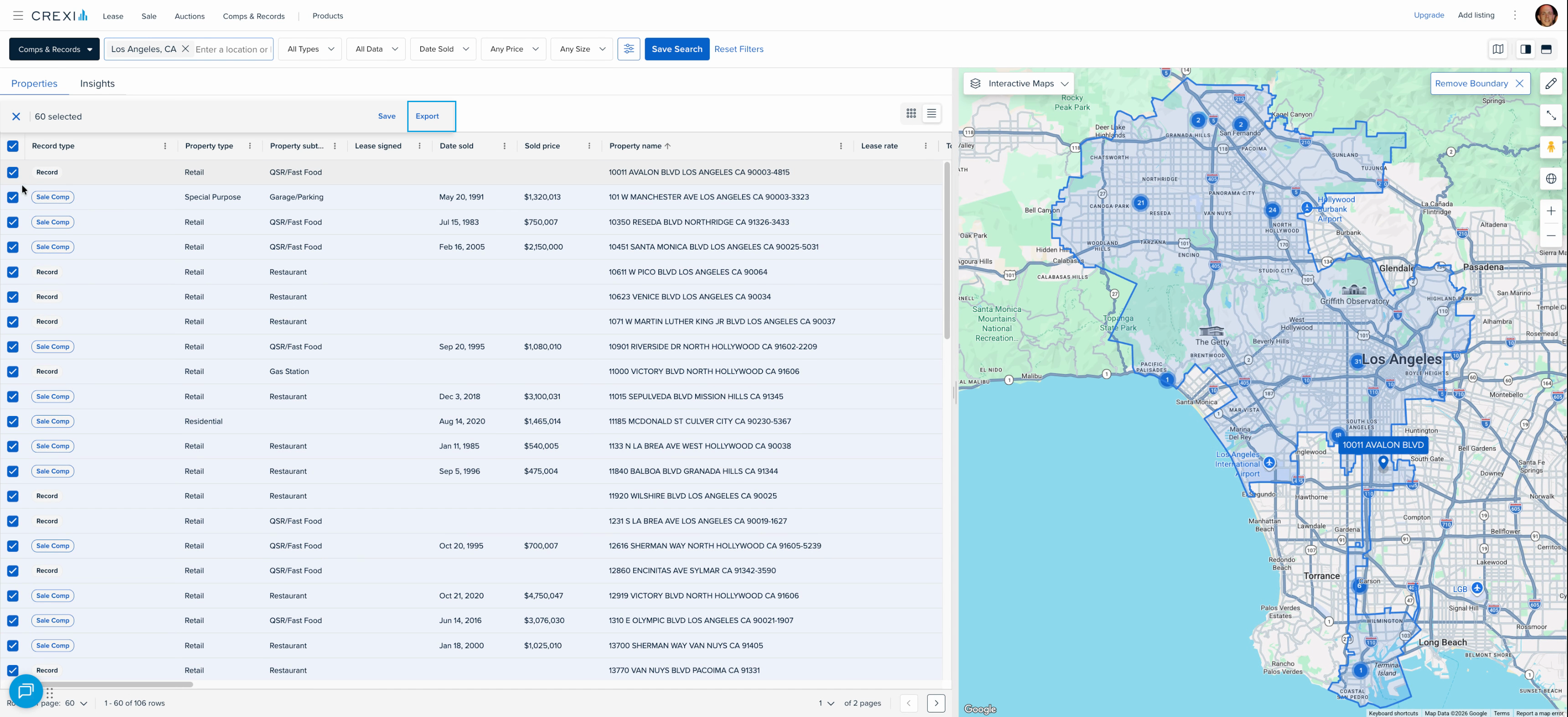
Step 9: Research top brands by location by selecting our Insights tab next to your results. 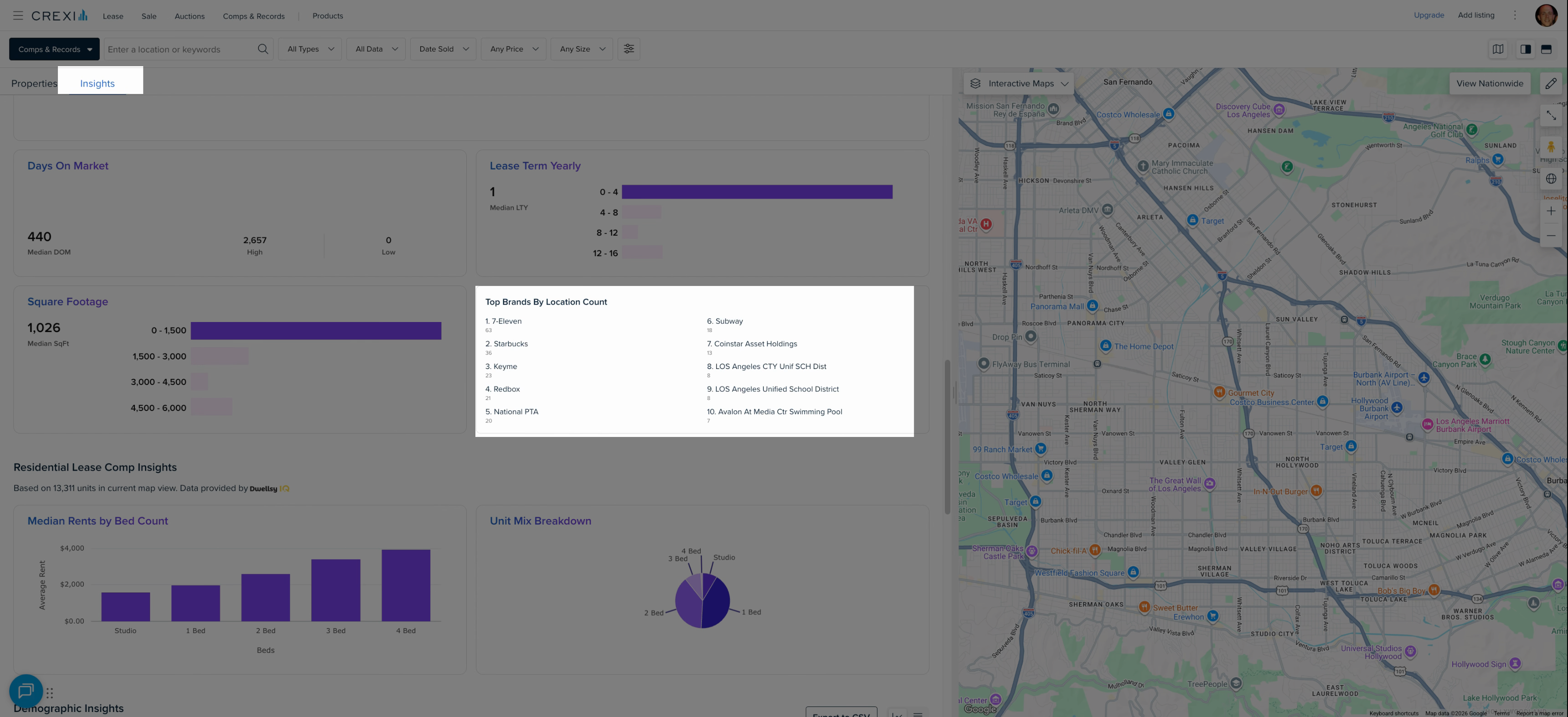
If you are interested in upgrading to an Intelligence/Pro account or need any other assistance, feel free to reach out to us directly at support@crexi.com or 888.273.0423.